Samsung Repairs
Looking for Samsung repair?
Most repairs done same day — drop off before 2pm
12-month warranty on all parts & labour
No fix, no fee — you only pay if we fix it
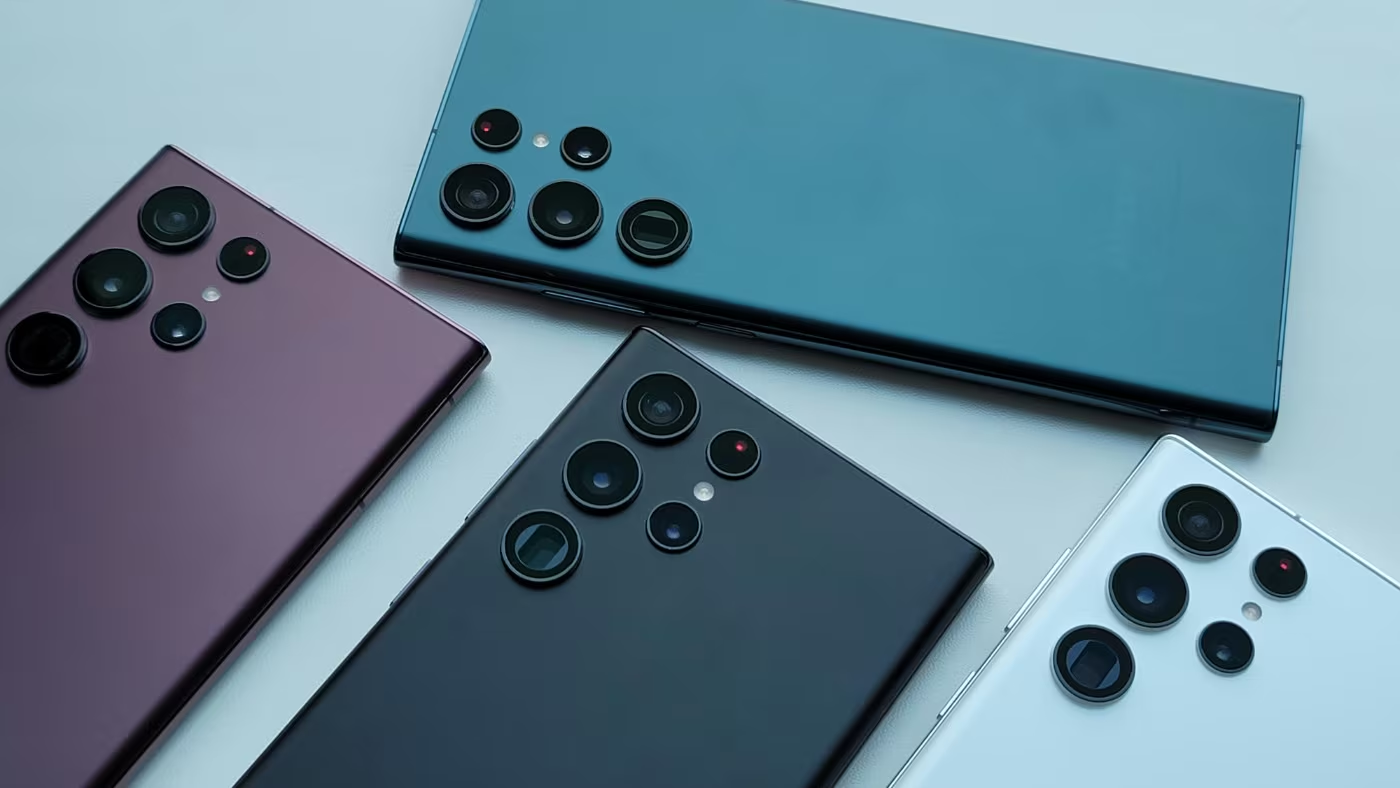
Trusted professionals. over 100,000+ devices fixed and counting

Trusted Samsung repair expert in the UK
Here at Fixmybrokenscreen.co.uk, we repair Samsung phone screens and provide you with the highest level of customer service to get your Samsung fixed quickly and professionally.
We have years of experience fixing all kinds of Samsung phone repair problems. Moreover, we have repaired all Samsung phone models to date. When you want to repair a Samsung mobile, our team is ready to spring into action and get the job done in no time. It really doesn’t matter if your Samsung is an older generation or if the problem is very complex. We will repair your device for the most affordable price in town.
Get your device fixed the easy way
You can post your device, arrange a door collection or visit our store.

Book Repair
- Place your order online
- Easy and secure

Send Your Device
- Use your preferred delivery method
- Arrange door collection

Repair & Return
- We start repairing as soon as we receive your device
- Most repairs are done in 1–2 days
- Secure return
🚚 Door Collection Service – The Easy Way to Send Your Samsung
Need a repair but want to skip the hassle of visiting the post office? Our Door Collection Service makes sending your Samsung effortless:
-
📦 Just Pack Your Samsung – No need to print labels or fill out paperwork.
-
🏠 Convenient Collection – We collect from your home or workplace at a time that suits you.
Enjoy a seamless and stress-free repair experience.
Select Door Collection at Checkout and let us do the rest Find out more
We can fix any Samsung Repairs - new or old
Select your Samsung to get started
How to Find Samsung Model?
Here are the steps to find your Samsung Galaxy model
There are two easy methods to find your Galaxy phone model.
Method 1: Check the Settings app
- Open the Settings app on your Samsung Galaxy device.
- Scroll down and tap 'About phone' or 'About device'.
- Look for the 'Model number' or 'Model name' information.
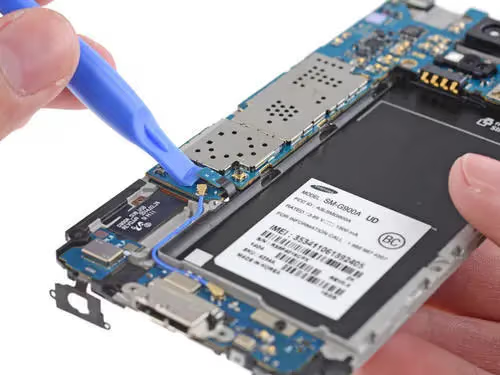
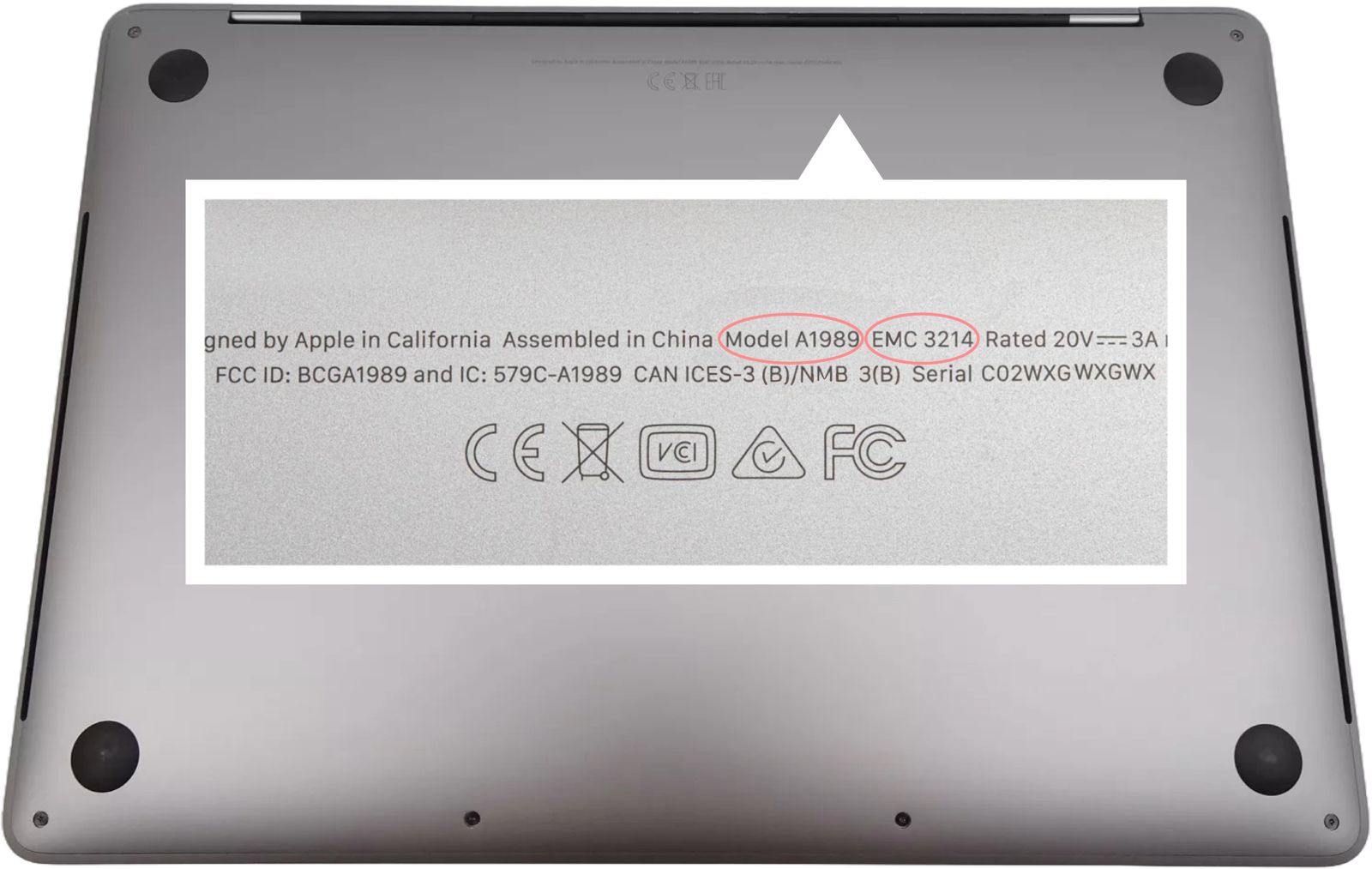
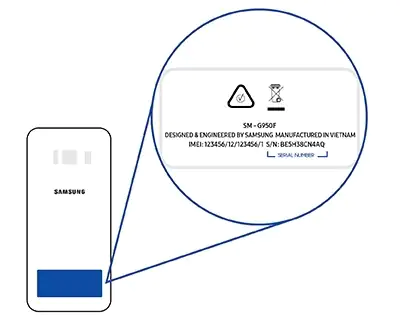
Method 2: Check the back of your Samsung phone.
- Using the Samsung phone model number, the table below will help identify which model Samsung phone you have
| Model Name | Model Number |
|---|---|
| Samsung Galaxy S22 Ultra | SM-S908B, SM-S908U, SM-S908U1, SM-S908W, SM-S908N, SM-S9080, SM-S908E, SM-S908E |
| Samsung Galaxy S22 | SM-S901B, SM-S901U, SM-S901U1, SM-S901W, SM-S901N, SM-S9010, SM-S901E, SM-S901E |
| Samsung Galaxy S22 Plus | SM-S906B, SM-S906U, SM-S906U1, SM-S906W, SM-S906N, SM-S9060, SM-S906E, SM-S906E |
| Samsung Galaxy S21 Ultra | SM-G998B, SM-G998B, SM-G998U, SM-G998U1, SM-G998W, SM-G998N, SM-G9980 |
| Samsung Galaxy S21 Plus | SM-G996B, SM-G996U, SM-G996U1, SM-G996W, SM-G996N, SM-G9960 |
| Samsung Galaxy S21 | SM-G990F |
| Samsung Galaxy S21 FE | SM-G990B, SM-G990U, SM-G990U1, SM-G990W, SM-G990E, SM-G9900, SM-G990B2 |
| Samsung Galaxy S20 Ultra | SM-G988, SM-G988U, SM-G988U1, SM-G9880, SM-G988N, SM-G988B, SM-G988W |
| Samsung Galaxy S20 Plus | SM-G986, SM-G986F, SM-G986U, SM-G986U1, SM-G9860, SM-G986B/DS, SM-G986N, SM-G986B, SM-G986W |
| Samsung Galaxy S20 | SM-G980, SM-G980F |
| Samsung Galaxy S20 FE | SM-G781B, SM-G781U, SM-G781U1, SM-G781W, SM-G7810, SM-G781N, SM-G781V |
| Samsung Galaxy S10 5G | SM-G977U, SM-G977N, SM-G977B, SM-G9770, SM-G977P, SM-G977T |
| Samsung Galaxy S10 Plus | SM-G975F, SM-G975U, SM-G975W, SM-G975U1, SM-G9750, SM-G975N, SM-G975X |
| Samsung Galaxy S10 | SM-G973F, SM-G973U, SM-G973W, SM-G973U1, SM-G9730, SM-G973N, SM-G973X, SCV41, SM-G973C |
| Samsung Galaxy S10 Lite | SM-G770F, SM-G770U1 |
| Samsung Galaxy S10e | SM-G970F, SM-G970U, SM-G970W, SM-G9700, SM-G970U1, SM-G970N, SM-G970X |
| Samsung Galaxy S9 Plus | SM-G965F, SM-G965U, SM-G965W, SM-G9650, SM-G965U1, SM-G965N, SCV39, SM-G965X |
| Samsung Galaxy S9 | SM-G960F, SM-G960, SM-G960F, SM-G960U, SM-G960W, SM-G9600, SM-G960U1, SM-G960N, SCV38, SM-G960X |
| Samsung Galaxy S8 Plus | SM-G955F, SM-G955FD, SM-G955W, SM-G955A, SM-G955P, SM-G955T, SM-G955V, SM-G955R4, SM-G955U, SM-G955S, SM-G955K, SM-G955L, SM-G955, SM-G955U1, SM-G955N, SM-G9550 |
| Samsung Galaxy S8 | SM-G950FD, SM-G950W, SM-G950S, SM-G950K, SM-G950L, SM-G9500, SM-G950A, SM-G950P, SM-G950T, SM-G950U, SM-G950V, SM-G950F, SM-G950U1, SM-G950N, SC-02J, SCV36 |
| Samsung Galaxy Note 20 Ultra | SM-N986B, SM-N986U, SM-N986U1, SM-N986W, SM-N9860, SM-N986N |
| Samsung Galaxy Note 20 | SM-N981B, SM-N981U, SM-N981U1, SM-N981W, SM-N9810, SM-N981N |
| Samsung Galaxy Note 10+ | SM-N975F, SM-N975U, SM-N9750, SM-N975U1, SM-N975W, SM-N975N, SM-N975X |
| Samsung Galaxy Note 10 | SM-N971U, SM-N971N |
| Samsung Galaxy Note 10 Lite | SM-N770F |
| Samsung Galaxy Note 9 | SM-N960F, SM-N9600, SM-N960F, SM-N960U, SM-N960U1, SM-N960N, SM-N960W, SM-N960X |
| Samsung Galaxy Note 8 | SM-N950F, SM-N950U, SM-N9500, SM-N950U1, SM-N950N, SM-N950W |
| Samsung Galaxy Fold | SM-F900F, SM-F9000, SM-F900W, SM-F900U, SM-F900N, SM-F900U1 |
| Samsung Galaxy Z Flip | SM-F700, SM-F700F, SM-F700F/DS, SM-F700U/DS, SM-F700U1/DS, SM-F700N, SM-F700U1 |
| Samsung Galaxy Z Fold 2 | SM-F916B, SM-F916U, SM-F916U1, SM-F916N, SM-F9160, SM-F916W |
| Samsung Galaxy Z Flip 5G | SM-F707B, SM-F707N, SM-F7070, SM-F707U, SM-F707U1, SM-F707W |
| Samsung Galaxy Z Fold 3 | SM-F926B, SM-F926U, SM-F926U1, SM-F926W, SM-F9260, SM-F926N |
| Samsung Galaxy Z Flip 3 | SM-F711B, SM-F711N, SM-F711U, SM-F711U1, SM-F711W, SM-F7110 |
| Samsung Galaxy Z Fold 4 | SM-F936B, SM-F936U, SM-F936U1, SM-F936N, SM-F936W |
| Samsung Galaxy Z Flip 4 | SM-F721B, SM-F721N, SM-F721U, SM-F721U1, SM-F721W |
| Samsung Galaxy A10 2019 | SM-A105F, SM-A105G, SM-A105M, SM-A105FN |
| Samsung Galaxy A20e 2019 | SM-A202F, SM-A202K |
| Samsung Galaxy A40 2019 | SM-A405F, SM-A405FN, SM-A405FM, SM-A405S |
| Samsung Galaxy A50 2019 | SM-A505F, SM-A505FN, SM-A505GN, SM-A505G, SM-A505FM, SM-A505YN, SM-A505W, SM-A505X, SM-A505U, SM-A505GT, SM-A505U1, SM-A505G, SM-A505N, SM-S506DL |
| Samsung Galaxy A70 2019 | SM-A705F, SM-A705FN, SM-A705GM, SM-A705MN, SM-A7050, SM-A705W, SM-A705YN, SM-A705X, SM-A705U |
| Samsung Galaxy A21s | SM-A217F, SM-A217F/DS, SM-A217F/DSN, SM-A217M, SM-A217M/DS, SM-A217N |
| Samsung Galaxy A41 | SM-A415F |
| Samsung Galaxy A51 | SM-A516F, SM-A516B, SM-A516U, SC-54A, SM-A516U1 |
| Samsung Galaxy A71 | SM-A716F, SM-A716F/DSN, SM-A7160, SM-A716U, SM-A716B, SM-A716U1 |
| Samsung Galaxy A32 4G/5G | SM-A326B, SM-A326BR/DS, SM-A326BR, SM-A326U, SM-A326W, SM-A326U1, SM-A326K, SM-S326DL |
| Samsung Galaxy A42 5G | SM-A426B, SM-A4260, SM-A426U, SM-A426U1, SM-A426N |
| Samsung Galaxy A52 4G/5G | SM-A526B, SM-A5260, SM-A526W, SM-A526U, SM-A526U1 |
Model Finding - Video Instruction
What iPhone Do I Have? Here’s the easy way to find out
There are two easy methods to find your iPhone model.
Method 1: Find the model name on your iPhone settings.
- Open the "Settings" App and tap on the "Settings" app icon, which looks like a gear wheel and is typically located on your iPhone's home screen.
- Go to "General" by scrolling down and tapping on it in the settings menu.
- Tap on "About" in the "General" section.
- Find "Model Name" in the "About" section, where you'll see the full model name of your iPhone.
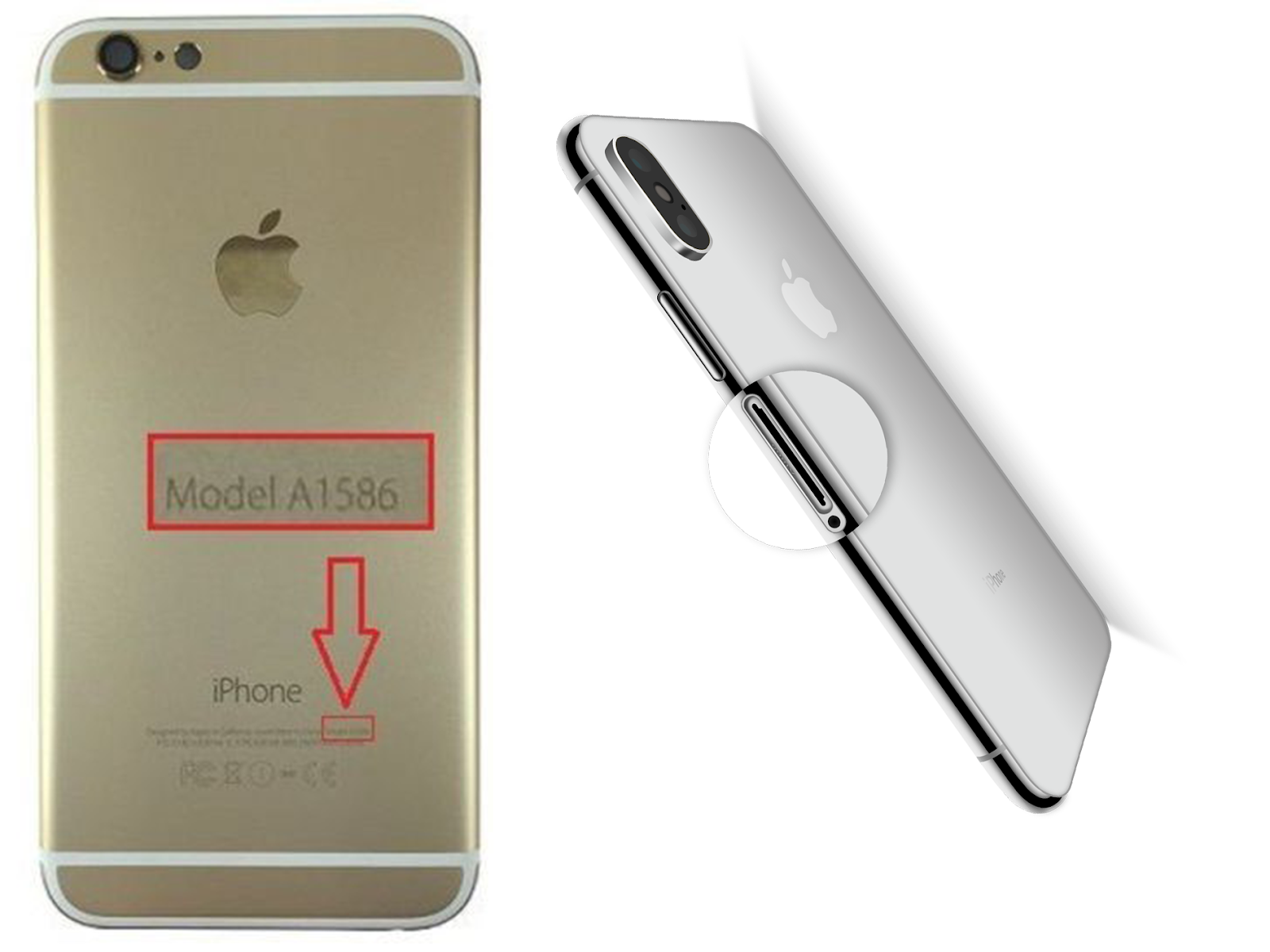
Method 2: Find the “A” model number on your iPhone.
- On iPhone 7 or earlier models, look on the back of your iPhone.
- On iPhone 8 or later models, check the upper side of the SIM tray.
- Using the iPhone model number, refer to the provided table to identify which model iPhone you have.
| Model Name | Model Number |
|---|---|
| iPhone 14 Pro Max | A2894, A2651, A2893, A2895 |
| iPhone 14 Pro | A2890, A2650, A2889, A2892 |
| iPhone 14 Plus | A2886, A2632, A2885, A2896, A2887 |
| iPhone 14 | A2882, A2649, A2881, A2884, A2883 |
| iPhone SE (3rd generation) | A2783, A2595, A2785, A2782, A2784 |
| iPhone 13 Pro Max | A2643, A2484, A2641, A2644, A2645 |
| iPhone 13 Pro | A2638, A2483, A2636, A2639, A2640 |
| iPhone 13 | A2633, A2482, A2631, A2634, A2635 |
| iPhone 13 Mini | A2628, A2481, A2626, A2629, A2630 |
| iPhone 12 Pro Max | A2411, A2342, A2410, A2412 |
| iPhone 12 Pro | A2407, A2341, A2406, A2408 |
| iPhone 12 | A2403, A2172, A2402, A2404 |
| iPhone 12 Mini | A2399, A2176, A2398, A2400, A2399 |
| iPhone SE (2nd generation) | A2275, A2296, A2298 |
| iPhone 11 Pro Max | A2218, A2161, A2220 |
| iPhone 11 Pro | A2215, A2160, A2217 |
| iPhone 11 | A2221, A2111, A2223 |
| iPhone XS Max | A1921, A2101, A2102, A2104 |
| iPhone XS | A2097, A1920, A2100, A2098 |
| iPhone XR | A2105, A1984, A2107, A2108, A2106 |
| iPhone X | A1865, A1901, A1902, A1903 |
| iPhone 8 Plus | A1864, A1897, A1898, A1899 |
| iPhone 8 | A1863, A1905, A1906, A1907 |
| iPhone 7 Plus | A1661, A1784, A1785, A1786 |
| iPhone 7 | A1660, A1778, A1779, A1780, A1853, A1866 |
| iPhone SE (1st generation) | A1662, A1723, A1724 |
| iPhone 6S Plus | A1634, A1687, A1690, A1699 |
| iPhone 6S | A1633, A1688, A1691, A1700 |
| iPhone 6 Plus | A1522, A1524 |
| iPhone 6 | A1549, A1586, A1589, A1522, A1524, A1593 |
| iPhone 5S | A1453, A1457, A1518, A1528, A1530, A1533 |
Model Finding - Video Instruction
Here’s how to find your iPad model
There are two easy methods to find your iPad model.
Method 1: Find the model name on your iPad settings.
- Open the "Settings" App
- Go to "General"
- Tap on "About"
- Find "Model"
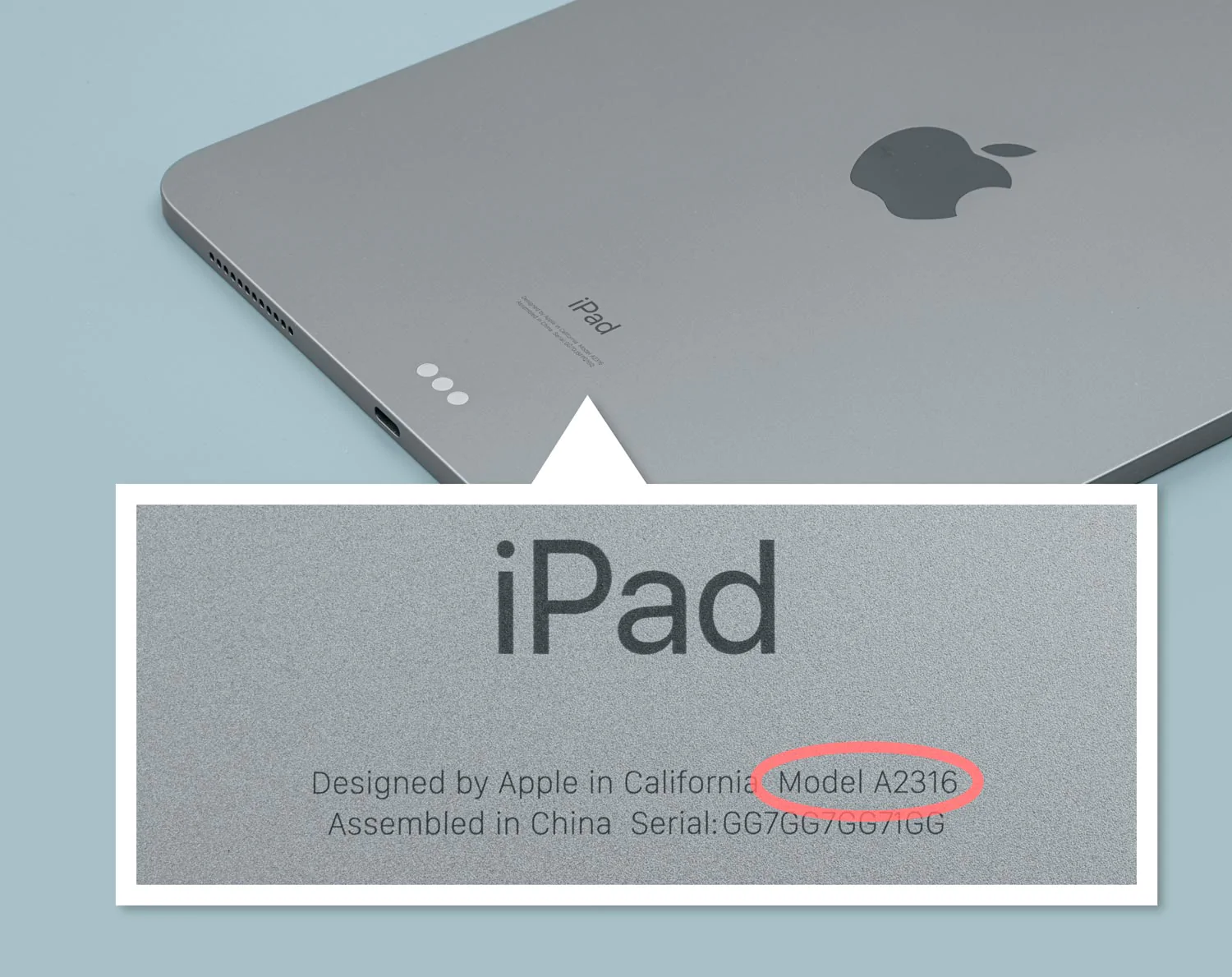
Method 2: Check the back of your iPad.
- By using the iPad model number, you can refer to the table below to determine the specific iPad model you own.
| Model Name | Model Number |
|---|---|
| iPad mini 4 | A1538, A1550 |
| iPad mini 5 | A2126, A2124, A2133, A2125 |
| iPad mini 6 | A2568, A2567, A2569 |
| iPad Air | A1474, A1475, A1476 |
| iPad Air 2 | A1566, A1567 |
| iPad Air 3 | A2153, A2123, A2154, A2152 |
| iPad Air 4 | A2324, A2072, A2325, A2316 |
| iPad Air 5 | A2589, A2591, A2588 |
| iPad Pro 9.7 | A1673, A1674, A1675 |
| iPad Pro 10.5 | A1701, A1709, A1852 |
| iPad Pro 12.9 1st Gen | A1584, A1652 |
| iPad Pro 12.9 2nd Gen | A1670, A1671, A1821 |
| iPad Pro 12.9 3rd Gen | A2014, A1895, A1876, A1983 |
| iPad Pro 12.9 4th Gen | A2069, A2232, A2233, A2229 |
| iPad Pro 12.9 5th Gen | A2378, A2379, A2461, A2462 |
| iPad Pro 12.9 6th Gen | A2436, A2764, A2437, A2766 |
| iPad pro 11" 1st | A2068, A2230, A2228, A2231 |
| iPad pro 11" 2nd Gen | A2013, A1934, A1980, A1979 |
| iPad pro 11" 3rd Gen | A2301, A2459, A2460 |
| iPad pro 11" 4th Gen | A2759, A2435, A2761, A2762 |
| iPad 4th | A1458, A1459, A1460 |
| iPad 5th | A1822, A1823 |
| iPad 6th | A1893, A1954 |
| iPad 7th | A2197, A2200, A2198 |
| iPad 8th | A2270, A2428, A2429, A2430 |
| iPad 9th | A2602, A2604, A2603, A2605 |
| iPad 10th | A2696, A2757, A2777 |
Model Finding - Video Instruction
Here are the steps to find your Apple Watch model
There are two easy methods to find your Apple Watch model.
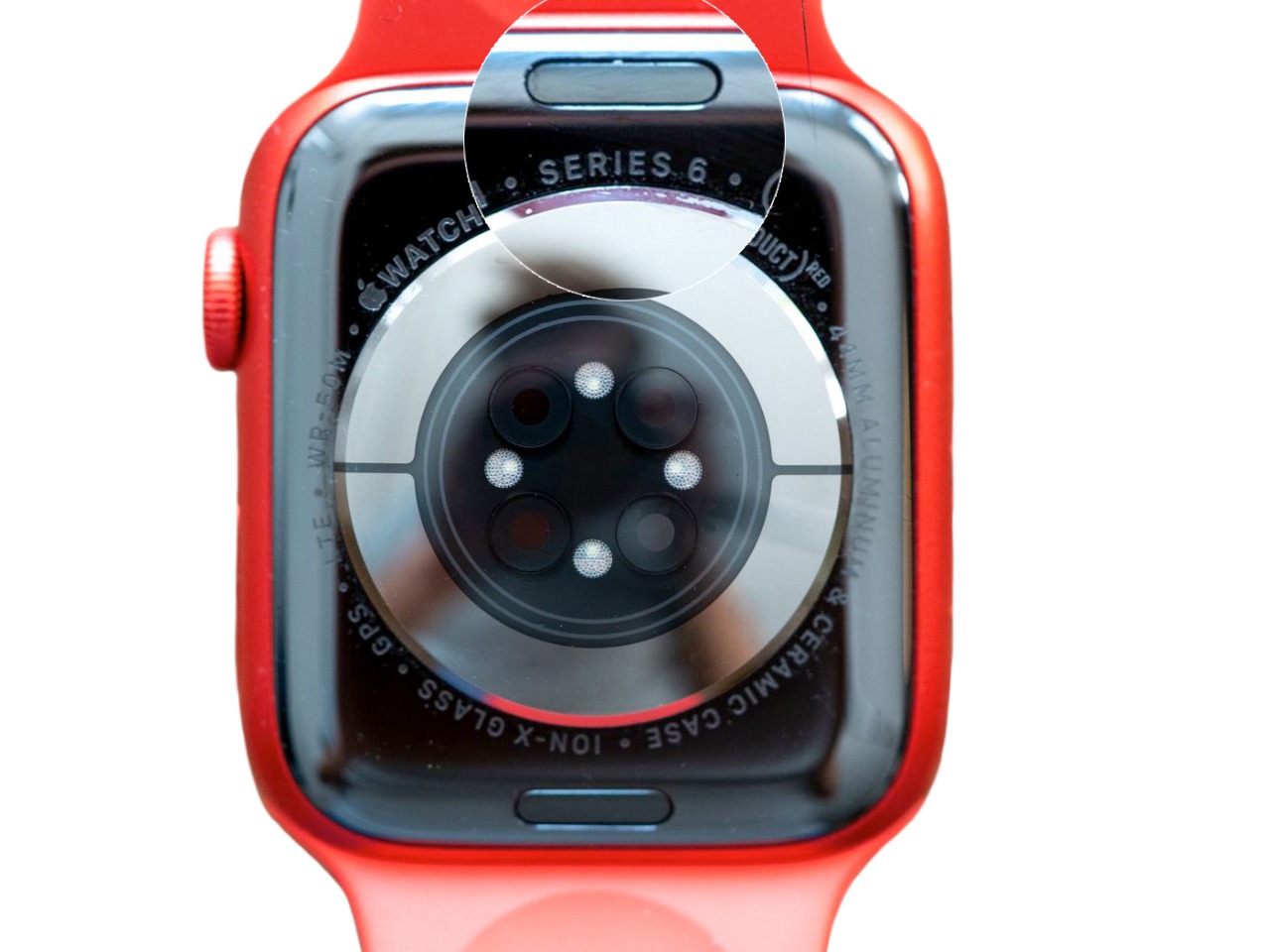
Method 1: Check the back of your Apple Watch
- The rear of every Apple Watch is engraved with details about the watch. Simply look at the back of the watch, and you'll discover which Series you own. However, if you possess a Series 1 Watch, you will only see the Apple logo with 'WATCH' beside it. The watch will also feature the case size of your specific model engraved on the back.
Method 2: Identify your Apple Watch with your iPhone
- Open the built-in Apple Watch app on your iPhone
- Go to, My Watch > General > About > Model
- Scroll down to the Model field, where you’ll find a model number beginning with M.
- Tap the Model number and you’ll see this change to a model number beginning with “A” followed by four numbers and no slash (for example, A1803) This is the model number of your Apple Watch.
| Model Name | Model Number |
|---|---|
| Apple Watch S1 | A1802, A1803, A1553, A1554 |
| Apple Watch S2 | A1757, A1758, A1816, A1817 |
| Apple Watch S3 | A1858, A1859, A1860, A1861, A1889, A1891, A1890, A1892 |
| Apple Watch S4 | A1977, A1978, A1975, A1976, A2007, A2008 |
| Apple Watch S5 / SE | A2092, A2093, A2156, A2157, A2094, A2095, A2092, A2093, A2351, A2352, A2353, A2354, A2355, A2356 |
| Apple Watch S6 | A2291, A2292, A2293, A2294, A2375, A2376 |
| Apple Watch S7 | A2473, A2474, A2475, A2476, A2477, A2478 |
| Apple Watch S8 | A2773, A2775, A2772, A2774, A2857, A2858 |
| Apple Watch SE 2 | A2722, A2723, A2724, A2725, A2726, A2727 |
| Apple Watch Ultra | A2622, A2684, A2859 |
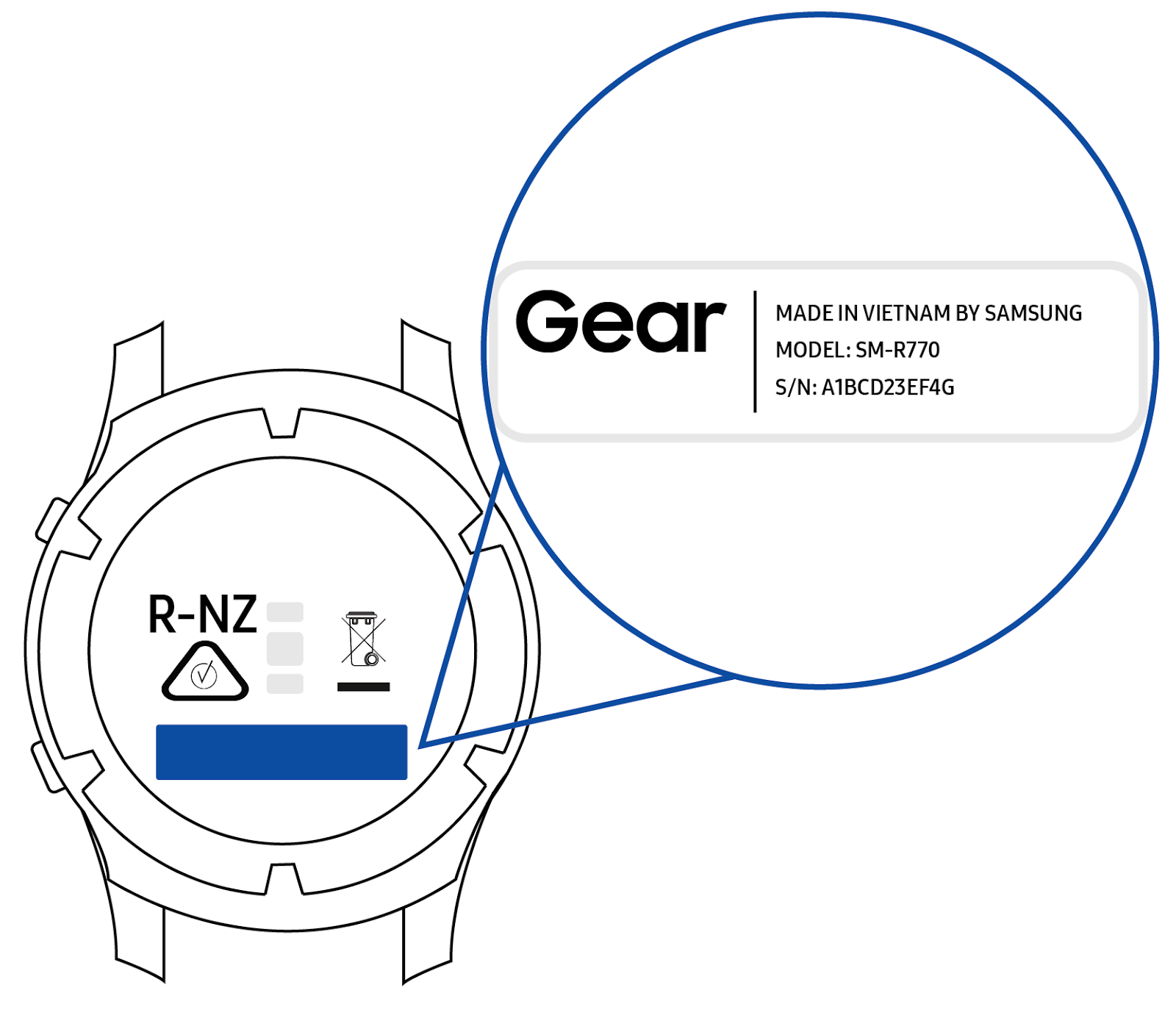
Here are the steps to find your Samsung Galaxy Watch model
There are two easy methods to find your Galaxy Watch model.
Method 1: Check the back of your Galaxy Watch
- The rear of every Apple Watch is engraved with details of the watch. Simply look on the back of the watch and you’ll find the model number of your watch.
Method 2: Identify your Galaxy Watch through the settings on your watch.
- Go to, Settings on your watch
- Tap About watch
- The model number and the serial number of your watch will be displayed.
| Model Name | Model Number |
|---|---|
| Active 2 40mm / 44mm | SM-R825F, SM-R835F, SM-R825U, SM-R835U, SM-R830, SM-R820 |
| Gear S3 Frontier / Classic | SM-R760A, SM-R765A, SM-R770A, SM-R775 |
| Galaxy Watch 3 41mm / 45mm | SM-R850, SM-R840, SM-R855F, SM-R845F, SM-R855U, SM-R845U |
| Galaxy Watch 4 40mm / 44mm | SM-R860, SM-R870 |
| Galaxy Watch 4 Classic 42mm / 46mm | SM-R880, SM-R890 |
| Galaxy Watch 5 40mm / 44mm | SM-R915F, SM-R905F |
| Galaxy Watch 5 Pro 45mm | SM-R925F |
| Gear Fit 2 | SM-R360 |
| Gear Fit 2 Pro | SM-R365 |
Convenient options to serve you
Mail In
No upfront cost - (optional)
UK mainland - nationwide coverage
Diagnostic Service
Free return shipment
Visit Store
For customers who are in London
Most repairs done in 45 mins or less

What Can We Fix on Your Samsung?
Why Customers Trust Us for Samsung Repairs
12-Month Warranty. All repairs come with a full year's warranty for added peace of mind.
Excellent Reviews Excellent review record on Trustpilot, Google and Facebook.
No Fix, No Fee. If we can't fix your device, you won't be charged a fee.
Excellent Customer Service. We are readily available to assist you via WhatsApp, email, and phone.
Most repairs done as soon as the same day.
Trusted professionals. over 100,000+ devices fixed and counting.
Samsung
If you are a local customer, you can walk into our store. You can usually have your Samsung fixed within 2 hours if you can drop off your device before 2 pm. However, we may need more time for complex repairs.
.
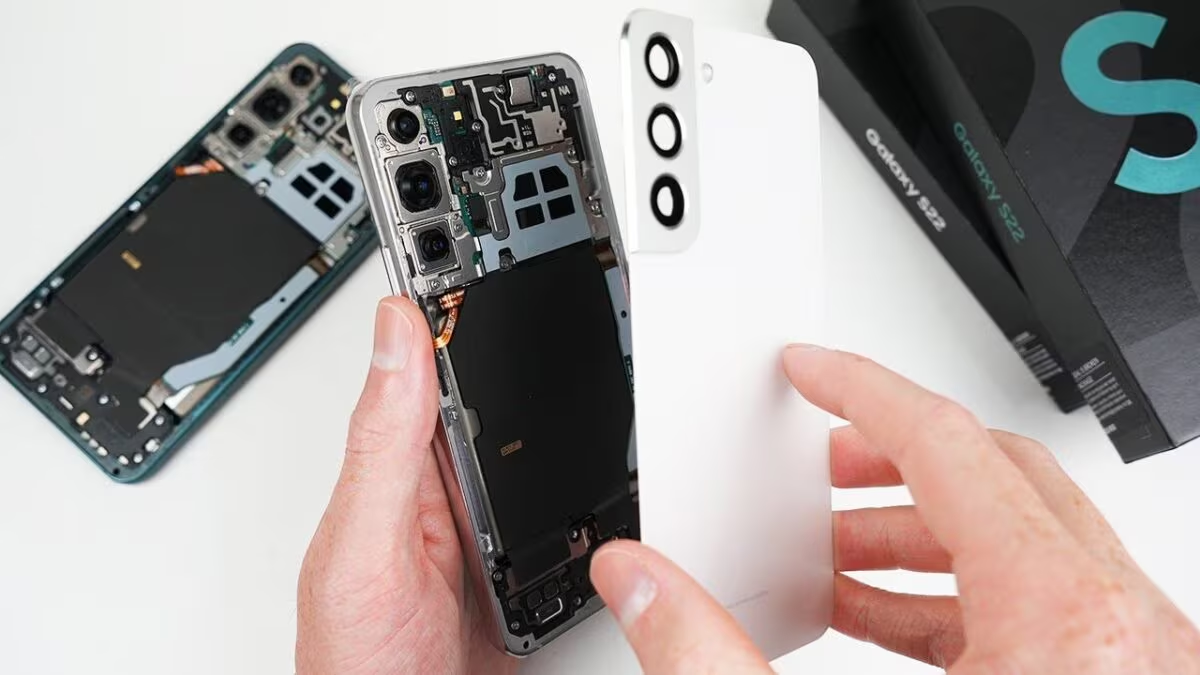
Your Samsung is in good hands
Don't leave important repairs to just anyone. For over 12 years, Fixmybrokenscreen.co.uk has repaired the devices people rely on most. And we have the reviews to prove it.
5
Damian
Galaxy S22 Plus
Excellent service at a reasonable price. Samsung quoted me £360 to replace my broken Samsung S22+ screen with a minimum of a 3 week wait. These guys carried out an excellent repair for £188 at, a fraction of the price. Also quick to respond to emails. Cant ask for more.
5
David Sawyer
Galaxy S20
Really good service. Very thorough, pointed out the issues with my device very clearly, and had good communication throughout. Well worth the cost to repair
5
Ben A
Galaxy S21 Ultra
Very easy to use service. Repair was performed without delay, we received the device back quickly and in perfect order.
5
Danny
Galaxy S23 Ultra
Did a glass repair on my Galaxy S23 Ultra, was meant to collect 2 days from drop-off but they did it even quicker and called me to pick it up the next day.

Fixmybrokenscreen.co.uk is trusted by 100,000+ customers
How do I get my Samsung fixed?
The site effortlessly guides you through diagnosing the issue you're facing with your Samsung.
After placing your order for Samsung repair service, follow the on-screen instructions and send your device to our repair centre from anywhere in the UK.
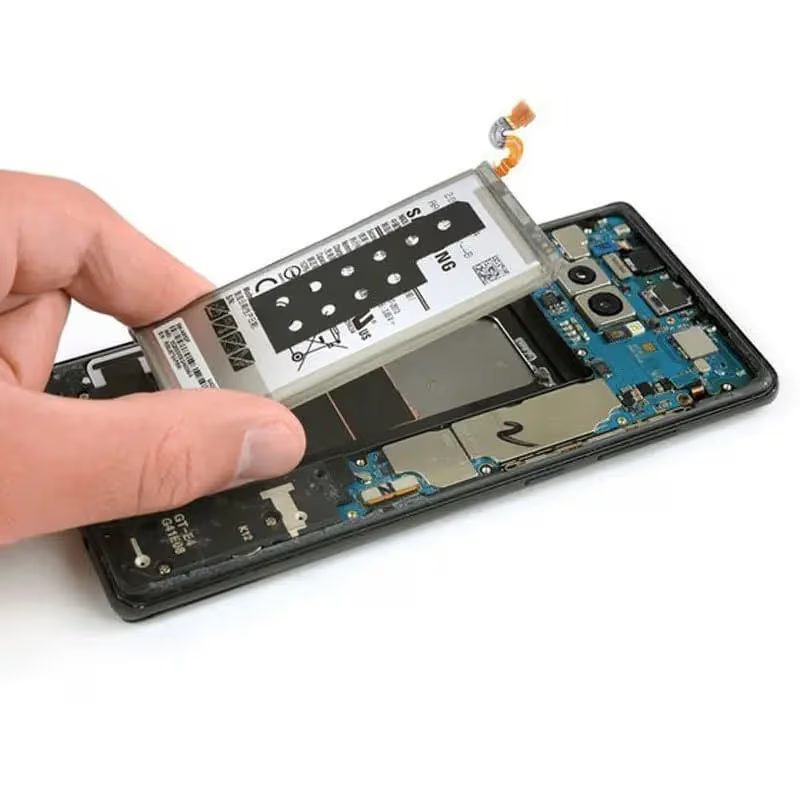
Once we receive your device in the post, our trained technicians will swiftly repair it, conduct a full diagnostic check, and promptly send it back to you within 1-3 days. The delivery will be tracked to ensure it is safe and secure.
Our customer service team is always ready to help with your inquiries.
If you need help choosing the right Samsung repair service, please send a picture of your device. Take the picture when it’s turned on (if possible). This will help us suggest you the right service.
Send us a message on WhatsApp, or email at info@fixmybrokenscreen.co.uk
The cost of repairing your Samsung screen varies depending on the model of your device. You can find the model number engraved on the bottom of your Samsung.
We will repair and return your device within 1-3 days from the day we receive it. However, complex repairs may require more time.
You will find an estimated repair timeframe for your specific order during checkout.
We will repair and return your Samsung phone on the same day we receive your device.
Please note: We must receive your device at our repair centre before 1 PM on weekdays. Any device received after 1 PM or on Saturdays will be processed on the next working day.
If you are a local customer, you can walk into our store.
You can usually have your Samsung screen fixed within 2 hours if you can drop off your device before 2 pm. However, we may need more time for complex repairs.
If you are on a busy schedule or travelling from a distance, we can do your repair while you wait, which typically takes 1-2 hours.
You need to Samsung pre-book your repair online and confirm your arrival time with one of our staff members. This will allow us to make necessary arrangements before you arrive, ensuring a smooth and efficient service.
Our address is 23 Whitechapel Road, London, E1 1DU.
If we can't fix your device, we will return it for free and give you a full refund. We operate on a No Fix, No Fee policy.
We offer a 12-month warranty on parts and labour for all repairs.
Please note: our warranty does not cover accidental or physical damage. It also does not cover damage from liquid or water.
To learn more about our warranty terms, please visit the link below.
https://fixmybrokenscreen.co.uk/our-warranty
After ordering your Samsung repair service online, follow the on-screen instructions. Then, send your device to our repair centre.
You can also find detailed instructions in your order confirmation email.
Send your device to our repair centre at:
- FMBS
- 23 Whitechapel Road,
- London
- E1 1DU
For more help, our customer service team is here to assist you with any questions you may have.
Please call us on 020 8064 2362,Send us a message on WhatsApp or email at info@fixmybrokenscreen.co.uk
Confirm Delete
Fixmybrokenscreen.co.uk
Typically replies within minutes
Need a repair? We fix MacBooks, iPhones, iPads & more — same day in London or send it by post. How can we help?