Galaxy Watch Repairs
Looking for Galaxy Watch repair?
Most repairs done same day — drop off before 2pm
12-month warranty on all parts & labour
No fix, no fee — you only pay if we fix it
Trusted professionals. over 100,000+ devices fixed and counting

Trusted Galaxy Watch repair expert in the UK
We are the trusted Galaxy Watch repair expert you are looking for. With years of experience in Galaxy Watch repairs, we’ve fixed every model to date. We understand how crucial your Galaxy Watch is to your daily activities, and our team is ready to provide fast, efficient Galaxy Watch repair service to resolve any issue with your device.
Whether your Galaxy Watch is from an older generation or facing complex problems, we can fix your Galaxy Watch quickly and offer up to a 12-month warranty on the repair we provide.
We can fix any Galaxy Watch Repairs - new or old
Select your Galaxy Watch to get started
How to Find Galaxy Watch Model?
Here are the steps to find your Samsung Galaxy model
There are two easy methods to find your Galaxy phone model.
Method 1: Check the Settings app
- Open the Settings app on your Samsung Galaxy device.
- Scroll down and tap 'About phone' or 'About device'.
- Look for the 'Model number' or 'Model name' information.
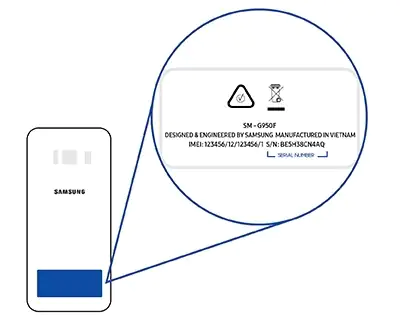
Method 2: Check the back of your Samsung phone.
- Using the Samsung phone model number, the table below will help identify which model Samsung phone you have
| Model Name | Model Number |
|---|---|
| Samsung Galaxy S22 Ultra | SM-S908B, SM-S908U, SM-S908U1, SM-S908W, SM-S908N, SM-S9080, SM-S908E, SM-S908E |
| Samsung Galaxy S22 | SM-S901B, SM-S901U, SM-S901U1, SM-S901W, SM-S901N, SM-S9010, SM-S901E, SM-S901E |
| Samsung Galaxy S22 Plus | SM-S906B, SM-S906U, SM-S906U1, SM-S906W, SM-S906N, SM-S9060, SM-S906E, SM-S906E |
| Samsung Galaxy S21 Ultra | SM-G998B, SM-G998B, SM-G998U, SM-G998U1, SM-G998W, SM-G998N, SM-G9980 |
| Samsung Galaxy S21 Plus | SM-G996B, SM-G996U, SM-G996U1, SM-G996W, SM-G996N, SM-G9960 |
| Samsung Galaxy S21 | SM-G990F |
| Samsung Galaxy S21 FE | SM-G990B, SM-G990U, SM-G990U1, SM-G990W, SM-G990E, SM-G9900, SM-G990B2 |
| Samsung Galaxy S20 Ultra | SM-G988, SM-G988U, SM-G988U1, SM-G9880, SM-G988N, SM-G988B, SM-G988W |
| Samsung Galaxy S20 Plus | SM-G986, SM-G986F, SM-G986U, SM-G986U1, SM-G9860, SM-G986B/DS, SM-G986N, SM-G986B, SM-G986W |
| Samsung Galaxy S20 | SM-G980, SM-G980F |
| Samsung Galaxy S20 FE | SM-G781B, SM-G781U, SM-G781U1, SM-G781W, SM-G7810, SM-G781N, SM-G781V |
| Samsung Galaxy S10 5G | SM-G977U, SM-G977N, SM-G977B, SM-G9770, SM-G977P, SM-G977T |
| Samsung Galaxy S10 Plus | SM-G975F, SM-G975U, SM-G975W, SM-G975U1, SM-G9750, SM-G975N, SM-G975X |
| Samsung Galaxy S10 | SM-G973F, SM-G973U, SM-G973W, SM-G973U1, SM-G9730, SM-G973N, SM-G973X, SCV41, SM-G973C |
| Samsung Galaxy S10 Lite | SM-G770F, SM-G770U1 |
| Samsung Galaxy S10e | SM-G970F, SM-G970U, SM-G970W, SM-G9700, SM-G970U1, SM-G970N, SM-G970X |
| Samsung Galaxy S9 Plus | SM-G965F, SM-G965U, SM-G965W, SM-G9650, SM-G965U1, SM-G965N, SCV39, SM-G965X |
| Samsung Galaxy S9 | SM-G960F, SM-G960, SM-G960F, SM-G960U, SM-G960W, SM-G9600, SM-G960U1, SM-G960N, SCV38, SM-G960X |
| Samsung Galaxy S8 Plus | SM-G955F, SM-G955FD, SM-G955W, SM-G955A, SM-G955P, SM-G955T, SM-G955V, SM-G955R4, SM-G955U, SM-G955S, SM-G955K, SM-G955L, SM-G955, SM-G955U1, SM-G955N, SM-G9550 |
| Samsung Galaxy S8 | SM-G950FD, SM-G950W, SM-G950S, SM-G950K, SM-G950L, SM-G9500, SM-G950A, SM-G950P, SM-G950T, SM-G950U, SM-G950V, SM-G950F, SM-G950U1, SM-G950N, SC-02J, SCV36 |
| Samsung Galaxy Note 20 Ultra | SM-N986B, SM-N986U, SM-N986U1, SM-N986W, SM-N9860, SM-N986N |
| Samsung Galaxy Note 20 | SM-N981B, SM-N981U, SM-N981U1, SM-N981W, SM-N9810, SM-N981N |
| Samsung Galaxy Note 10+ | SM-N975F, SM-N975U, SM-N9750, SM-N975U1, SM-N975W, SM-N975N, SM-N975X |
| Samsung Galaxy Note 10 | SM-N971U, SM-N971N |
| Samsung Galaxy Note 10 Lite | SM-N770F |
| Samsung Galaxy Note 9 | SM-N960F, SM-N9600, SM-N960F, SM-N960U, SM-N960U1, SM-N960N, SM-N960W, SM-N960X |
| Samsung Galaxy Note 8 | SM-N950F, SM-N950U, SM-N9500, SM-N950U1, SM-N950N, SM-N950W |
| Samsung Galaxy Fold | SM-F900F, SM-F9000, SM-F900W, SM-F900U, SM-F900N, SM-F900U1 |
| Samsung Galaxy Z Flip | SM-F700, SM-F700F, SM-F700F/DS, SM-F700U/DS, SM-F700U1/DS, SM-F700N, SM-F700U1 |
| Samsung Galaxy Z Fold 2 | SM-F916B, SM-F916U, SM-F916U1, SM-F916N, SM-F9160, SM-F916W |
| Samsung Galaxy Z Flip 5G | SM-F707B, SM-F707N, SM-F7070, SM-F707U, SM-F707U1, SM-F707W |
| Samsung Galaxy Z Fold 3 | SM-F926B, SM-F926U, SM-F926U1, SM-F926W, SM-F9260, SM-F926N |
| Samsung Galaxy Z Flip 3 | SM-F711B, SM-F711N, SM-F711U, SM-F711U1, SM-F711W, SM-F7110 |
| Samsung Galaxy Z Fold 4 | SM-F936B, SM-F936U, SM-F936U1, SM-F936N, SM-F936W |
| Samsung Galaxy Z Flip 4 | SM-F721B, SM-F721N, SM-F721U, SM-F721U1, SM-F721W |
| Samsung Galaxy A10 2019 | SM-A105F, SM-A105G, SM-A105M, SM-A105FN |
| Samsung Galaxy A20e 2019 | SM-A202F, SM-A202K |
| Samsung Galaxy A40 2019 | SM-A405F, SM-A405FN, SM-A405FM, SM-A405S |
| Samsung Galaxy A50 2019 | SM-A505F, SM-A505FN, SM-A505GN, SM-A505G, SM-A505FM, SM-A505YN, SM-A505W, SM-A505X, SM-A505U, SM-A505GT, SM-A505U1, SM-A505G, SM-A505N, SM-S506DL |
| Samsung Galaxy A70 2019 | SM-A705F, SM-A705FN, SM-A705GM, SM-A705MN, SM-A7050, SM-A705W, SM-A705YN, SM-A705X, SM-A705U |
| Samsung Galaxy A21s | SM-A217F, SM-A217F/DS, SM-A217F/DSN, SM-A217M, SM-A217M/DS, SM-A217N |
| Samsung Galaxy A41 | SM-A415F |
| Samsung Galaxy A51 | SM-A516F, SM-A516B, SM-A516U, SC-54A, SM-A516U1 |
| Samsung Galaxy A71 | SM-A716F, SM-A716F/DSN, SM-A7160, SM-A716U, SM-A716B, SM-A716U1 |
| Samsung Galaxy A32 4G/5G | SM-A326B, SM-A326BR/DS, SM-A326BR, SM-A326U, SM-A326W, SM-A326U1, SM-A326K, SM-S326DL |
| Samsung Galaxy A42 5G | SM-A426B, SM-A4260, SM-A426U, SM-A426U1, SM-A426N |
| Samsung Galaxy A52 4G/5G | SM-A526B, SM-A5260, SM-A526W, SM-A526U, SM-A526U1 |
Model Finding - Video Instruction
What iPhone Do I Have? Here’s the easy way to find out
There are two easy methods to find your iPhone model.
Method 1: Find the model name on your iPhone settings.
- Open the "Settings" App and tap on the "Settings" app icon, which looks like a gear wheel and is typically located on your iPhone's home screen.
- Go to "General" by scrolling down and tapping on it in the settings menu.
- Tap on "About" in the "General" section.
- Find "Model Name" in the "About" section, where you'll see the full model name of your iPhone.
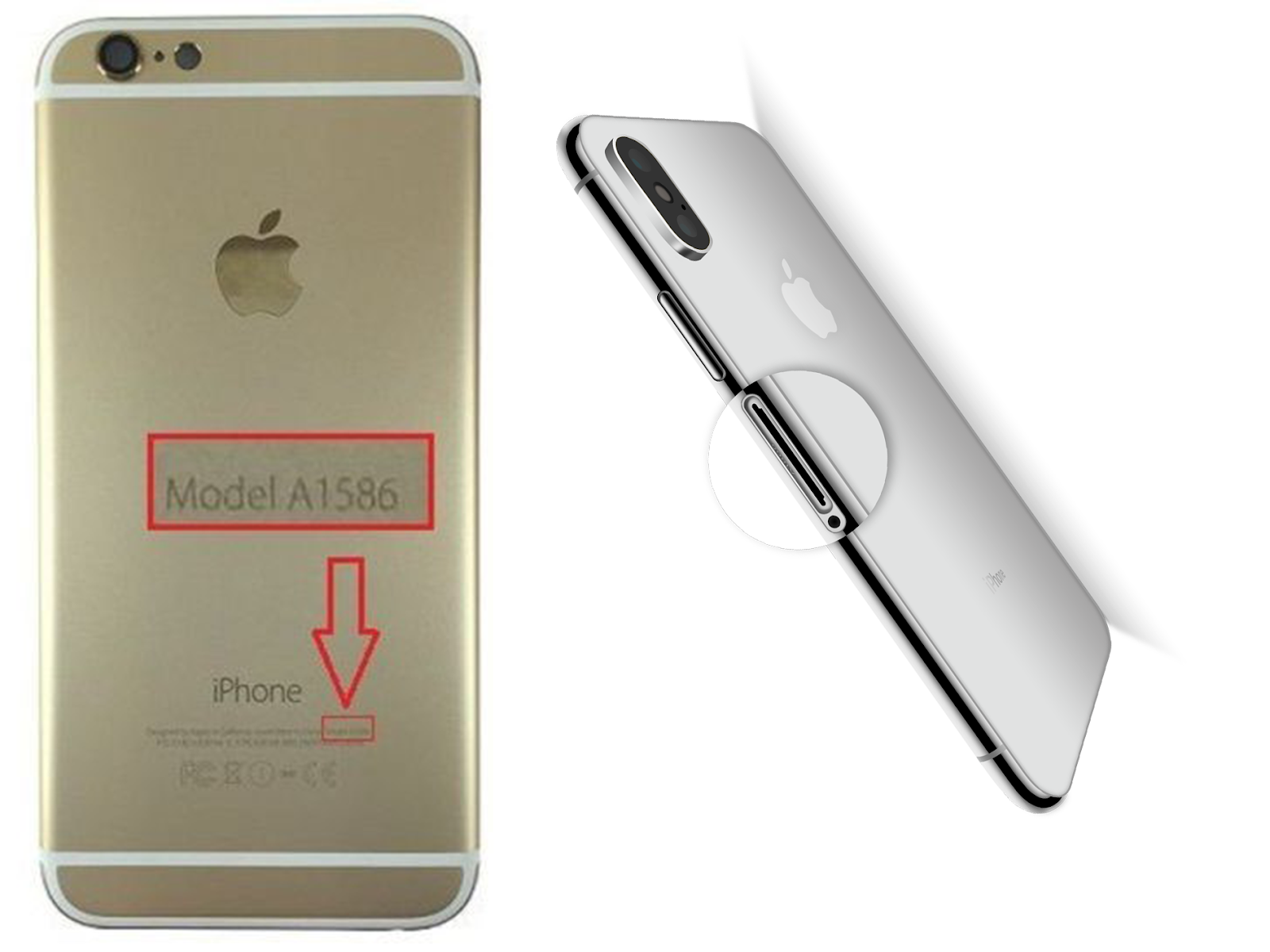
Method 2: Find the “A” model number on your iPhone.
- On iPhone 7 or earlier models, look on the back of your iPhone.
- On iPhone 8 or later models, check the upper side of the SIM tray.
- Using the iPhone model number, refer to the provided table to identify which model iPhone you have.
| Model Name | Model Number |
|---|---|
| iPhone 14 Pro Max | A2894, A2651, A2893, A2895 |
| iPhone 14 Pro | A2890, A2650, A2889, A2892 |
| iPhone 14 Plus | A2886, A2632, A2885, A2896, A2887 |
| iPhone 14 | A2882, A2649, A2881, A2884, A2883 |
| iPhone SE (3rd generation) | A2783, A2595, A2785, A2782, A2784 |
| iPhone 13 Pro Max | A2643, A2484, A2641, A2644, A2645 |
| iPhone 13 Pro | A2638, A2483, A2636, A2639, A2640 |
| iPhone 13 | A2633, A2482, A2631, A2634, A2635 |
| iPhone 13 Mini | A2628, A2481, A2626, A2629, A2630 |
| iPhone 12 Pro Max | A2411, A2342, A2410, A2412 |
| iPhone 12 Pro | A2407, A2341, A2406, A2408 |
| iPhone 12 | A2403, A2172, A2402, A2404 |
| iPhone 12 Mini | A2399, A2176, A2398, A2400, A2399 |
| iPhone SE (2nd generation) | A2275, A2296, A2298 |
| iPhone 11 Pro Max | A2218, A2161, A2220 |
| iPhone 11 Pro | A2215, A2160, A2217 |
| iPhone 11 | A2221, A2111, A2223 |
| iPhone XS Max | A1921, A2101, A2102, A2104 |
| iPhone XS | A2097, A1920, A2100, A2098 |
| iPhone XR | A2105, A1984, A2107, A2108, A2106 |
| iPhone X | A1865, A1901, A1902, A1903 |
| iPhone 8 Plus | A1864, A1897, A1898, A1899 |
| iPhone 8 | A1863, A1905, A1906, A1907 |
| iPhone 7 Plus | A1661, A1784, A1785, A1786 |
| iPhone 7 | A1660, A1778, A1779, A1780, A1853, A1866 |
| iPhone SE (1st generation) | A1662, A1723, A1724 |
| iPhone 6S Plus | A1634, A1687, A1690, A1699 |
| iPhone 6S | A1633, A1688, A1691, A1700 |
| iPhone 6 Plus | A1522, A1524 |
| iPhone 6 | A1549, A1586, A1589, A1522, A1524, A1593 |
| iPhone 5S | A1453, A1457, A1518, A1528, A1530, A1533 |
Model Finding - Video Instruction
Here’s how to find your iPad model
There are two easy methods to find your iPad model.
Method 1: Find the model name on your iPad settings.
- Open the "Settings" App
- Go to "General"
- Tap on "About"
- Find "Model"
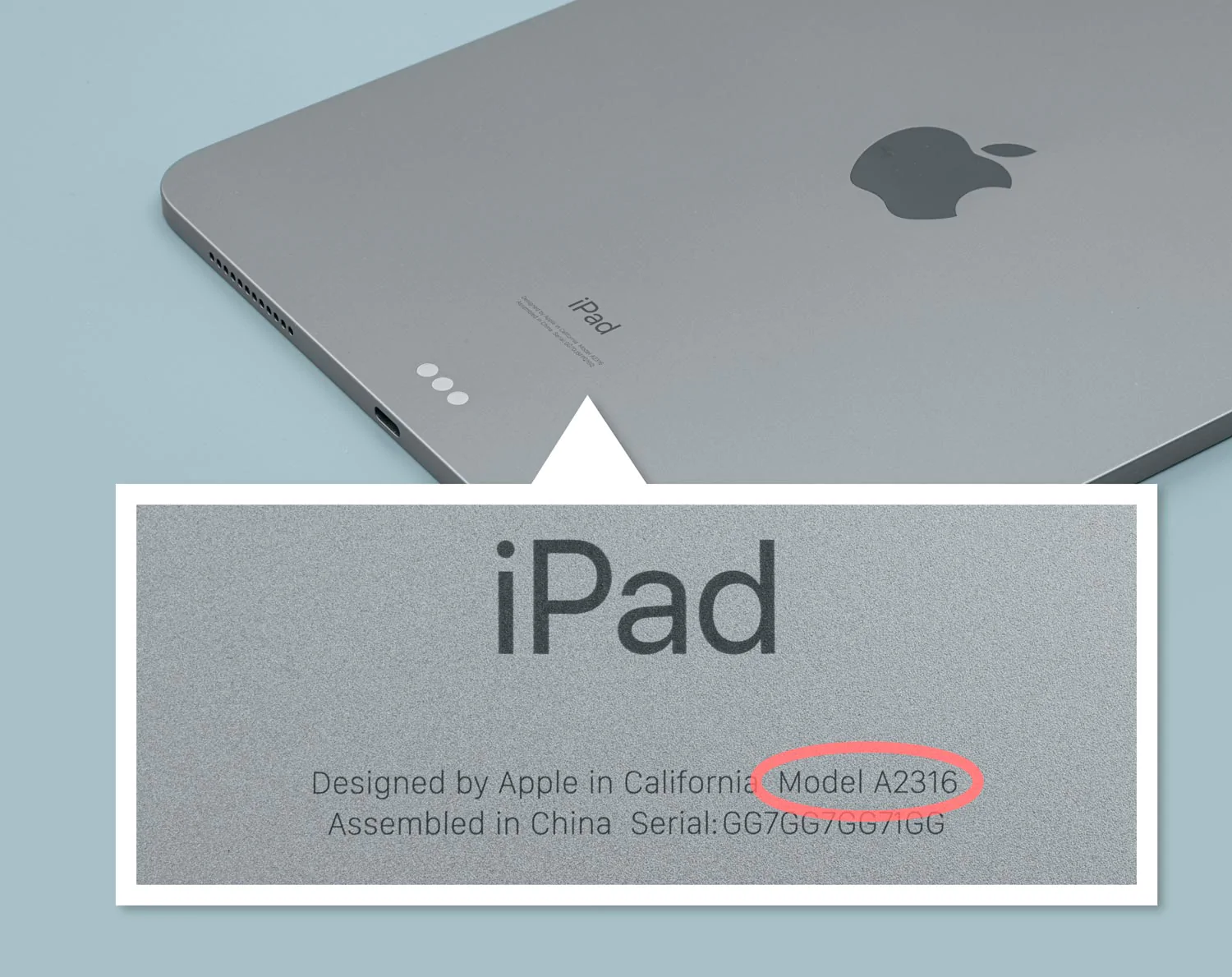
Method 2: Check the back of your iPad.
- By using the iPad model number, you can refer to the table below to determine the specific iPad model you own.
| Model Name | Model Number |
|---|---|
| iPad mini 4 | A1538, A1550 |
| iPad mini 5 | A2126, A2124, A2133, A2125 |
| iPad mini 6 | A2568, A2567, A2569 |
| iPad Air | A1474, A1475, A1476 |
| iPad Air 2 | A1566, A1567 |
| iPad Air 3 | A2153, A2123, A2154, A2152 |
| iPad Air 4 | A2324, A2072, A2325, A2316 |
| iPad Air 5 | A2589, A2591, A2588 |
| iPad Pro 9.7 | A1673, A1674, A1675 |
| iPad Pro 10.5 | A1701, A1709, A1852 |
| iPad Pro 12.9 1st Gen | A1584, A1652 |
| iPad Pro 12.9 2nd Gen | A1670, A1671, A1821 |
| iPad Pro 12.9 3rd Gen | A2014, A1895, A1876, A1983 |
| iPad Pro 12.9 4th Gen | A2069, A2232, A2233, A2229 |
| iPad Pro 12.9 5th Gen | A2378, A2379, A2461, A2462 |
| iPad Pro 12.9 6th Gen | A2436, A2764, A2437, A2766 |
| iPad pro 11" 1st | A2068, A2230, A2228, A2231 |
| iPad pro 11" 2nd Gen | A2013, A1934, A1980, A1979 |
| iPad pro 11" 3rd Gen | A2301, A2459, A2460 |
| iPad pro 11" 4th Gen | A2759, A2435, A2761, A2762 |
| iPad 4th | A1458, A1459, A1460 |
| iPad 5th | A1822, A1823 |
| iPad 6th | A1893, A1954 |
| iPad 7th | A2197, A2200, A2198 |
| iPad 8th | A2270, A2428, A2429, A2430 |
| iPad 9th | A2602, A2604, A2603, A2605 |
| iPad 10th | A2696, A2757, A2777 |
Model Finding - Video Instruction
Here are the steps to find your Apple Watch model
There are two easy methods to find your Apple Watch model.
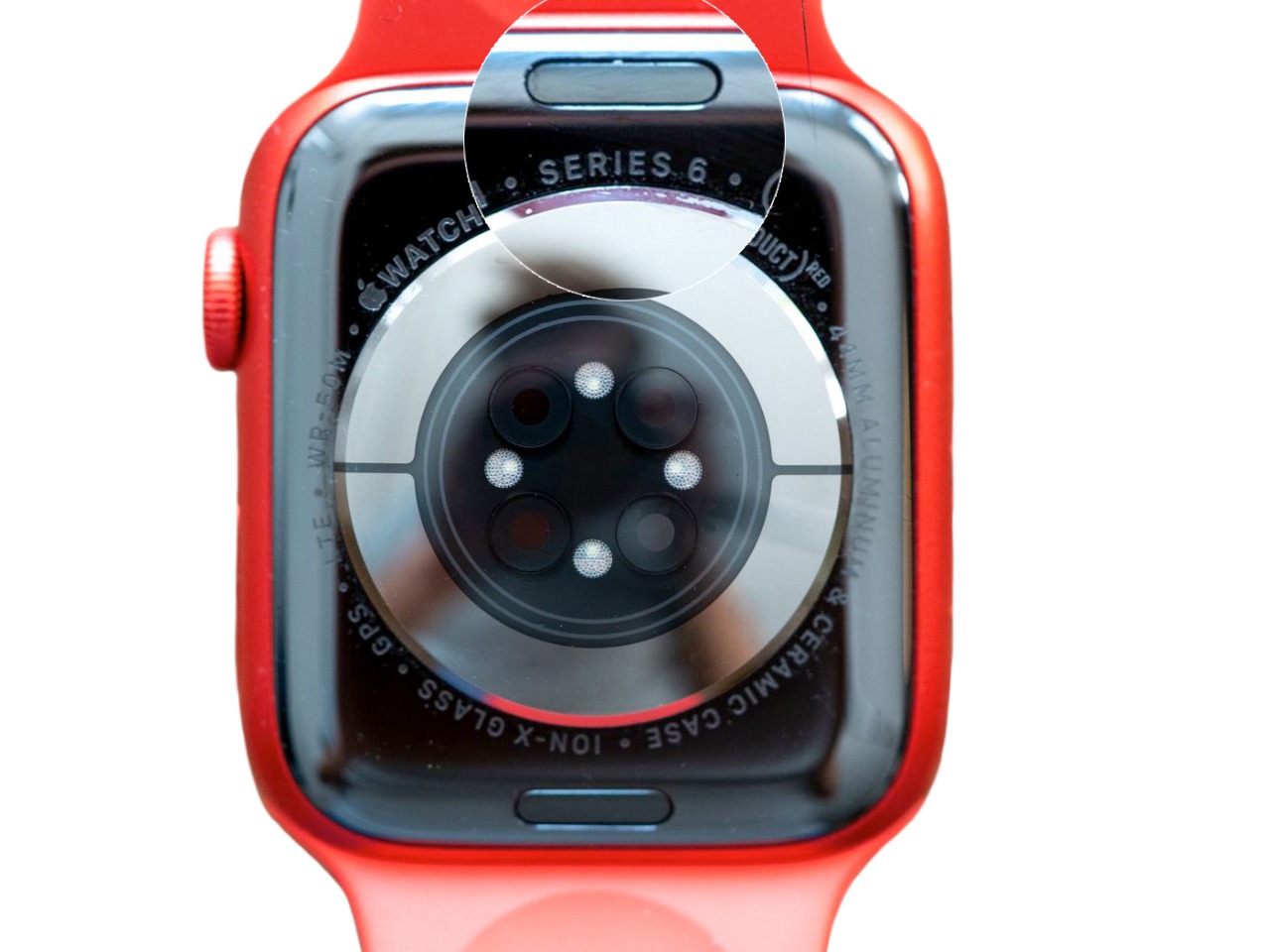
Method 1: Check the back of your Apple Watch
- The rear of every Apple Watch is engraved with details about the watch. Simply look at the back of the watch, and you'll discover which Series you own. However, if you possess a Series 1 Watch, you will only see the Apple logo with 'WATCH' beside it. The watch will also feature the case size of your specific model engraved on the back.
Method 2: Identify your Apple Watch with your iPhone
- Open the built-in Apple Watch app on your iPhone
- Go to, My Watch > General > About > Model
- Scroll down to the Model field, where you’ll find a model number beginning with M.
- Tap the Model number and you’ll see this change to a model number beginning with “A” followed by four numbers and no slash (for example, A1803) This is the model number of your Apple Watch.
| Model Name | Model Number |
|---|---|
| Apple Watch S1 | A1802, A1803, A1553, A1554 |
| Apple Watch S2 | A1757, A1758, A1816, A1817 |
| Apple Watch S3 | A1858, A1859, A1860, A1861, A1889, A1891, A1890, A1892 |
| Apple Watch S4 | A1977, A1978, A1975, A1976, A2007, A2008 |
| Apple Watch S5 / SE | A2092, A2093, A2156, A2157, A2094, A2095, A2092, A2093, A2351, A2352, A2353, A2354, A2355, A2356 |
| Apple Watch S6 | A2291, A2292, A2293, A2294, A2375, A2376 |
| Apple Watch S7 | A2473, A2474, A2475, A2476, A2477, A2478 |
| Apple Watch S8 | A2773, A2775, A2772, A2774, A2857, A2858 |
| Apple Watch SE 2 | A2722, A2723, A2724, A2725, A2726, A2727 |
| Apple Watch Ultra | A2622, A2684, A2859 |
Here are the steps to find your Samsung Galaxy Watch model
There are two easy methods to find your Galaxy Watch model.
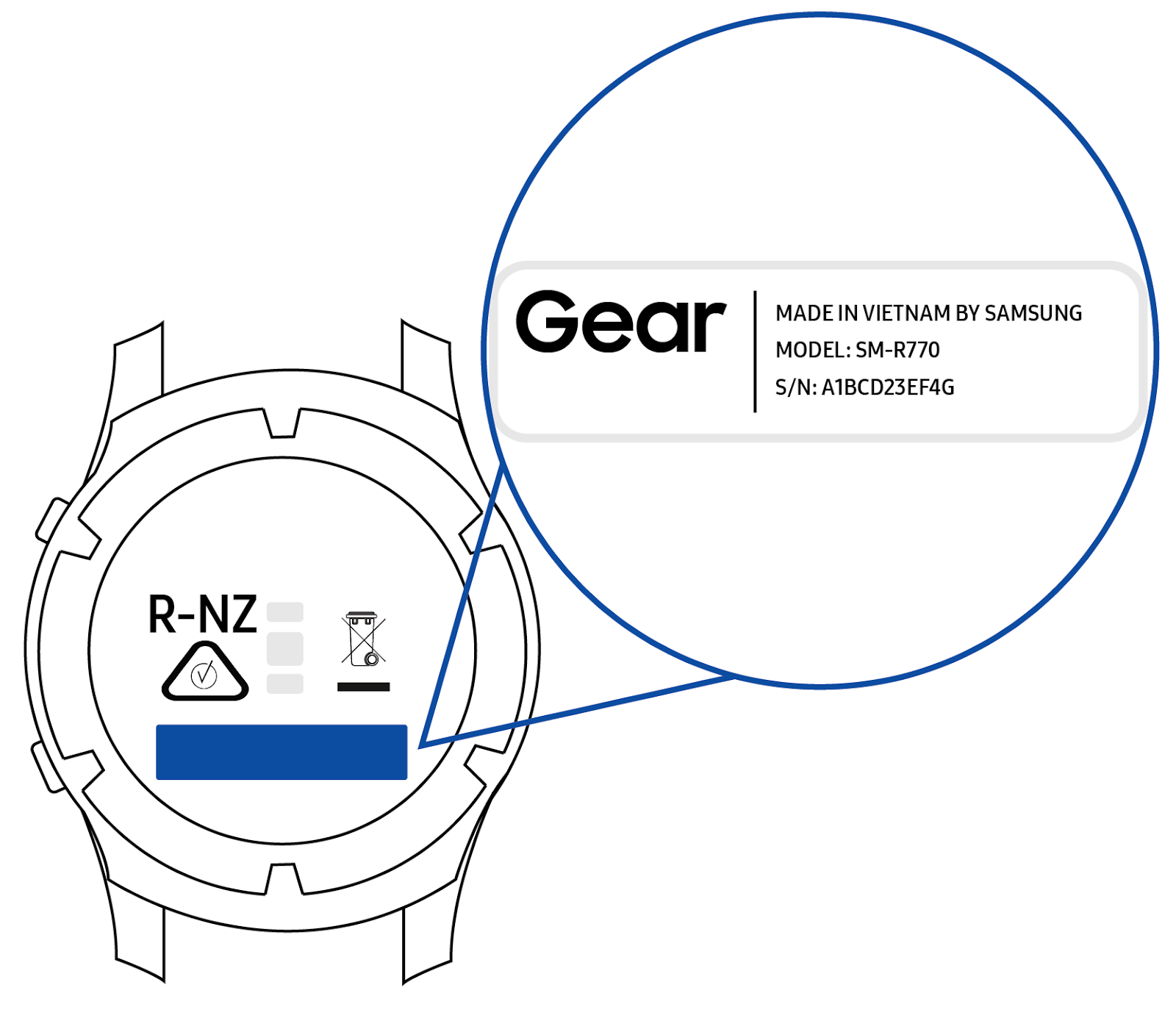
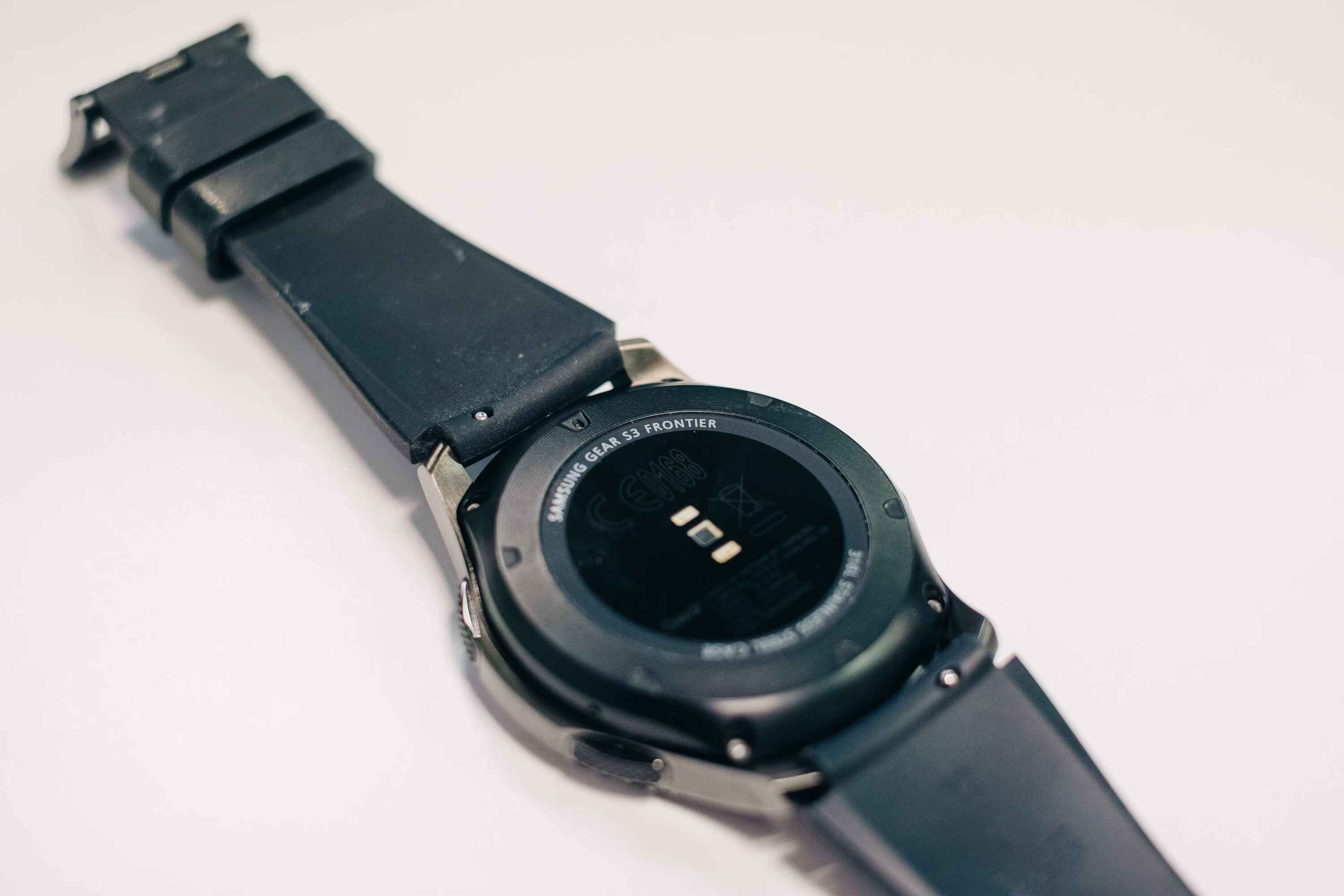
Method 1: Check the back of your Galaxy Watch
- The rear of every Apple Watch is engraved with details of the watch. Simply look on the back of the watch and you’ll find the model number of your watch.
Method 2: Identify your Galaxy Watch through the settings on your watch.
- Go to, Settings on your watch
- Tap About watch
- The model number and the serial number of your watch will be displayed.
| Model Name | Model Number |
|---|---|
| Active 2 40mm / 44mm | SM-R825F, SM-R835F, SM-R825U, SM-R835U, SM-R830, SM-R820 |
| Gear S3 Frontier / Classic | SM-R760A, SM-R765A, SM-R770A, SM-R775 |
| Galaxy Watch 3 41mm / 45mm | SM-R850, SM-R840, SM-R855F, SM-R845F, SM-R855U, SM-R845U |
| Galaxy Watch 4 40mm / 44mm | SM-R860, SM-R870 |
| Galaxy Watch 4 Classic 42mm / 46mm | SM-R880, SM-R890 |
| Galaxy Watch 5 40mm / 44mm | SM-R915F, SM-R905F |
| Galaxy Watch 5 Pro 45mm | SM-R925F |
| Gear Fit 2 | SM-R360 |
| Gear Fit 2 Pro | SM-R365 |
Convenient options to serve you
Mail In
No upfront cost - (optional)
UK mainland - nationwide coverage
Diagnostic Service
Free return shipment
Visit Store
For customers who are in London
Most repairs done in 45 mins or less

What Can We Fix on Your Galaxy Watch?
Why Customers Trust Us for Galaxy Watch Repairs
12-Month Warranty. All repairs come with a full year's warranty for added peace of mind.
Excellent Reviews Excellent review record on Trustpilot, Google and Facebook.
No Fix, No Fee. If we can't fix your device, you won't be charged a fee.
Excellent Customer Service. We are readily available to assist you via WhatsApp, email, and phone.
Fast Turnaround. We prioritize quick service to minimize downtime for the fastest repair turnaround possible.
Trusted professionals. over 100,000+ devices fixed and counting.
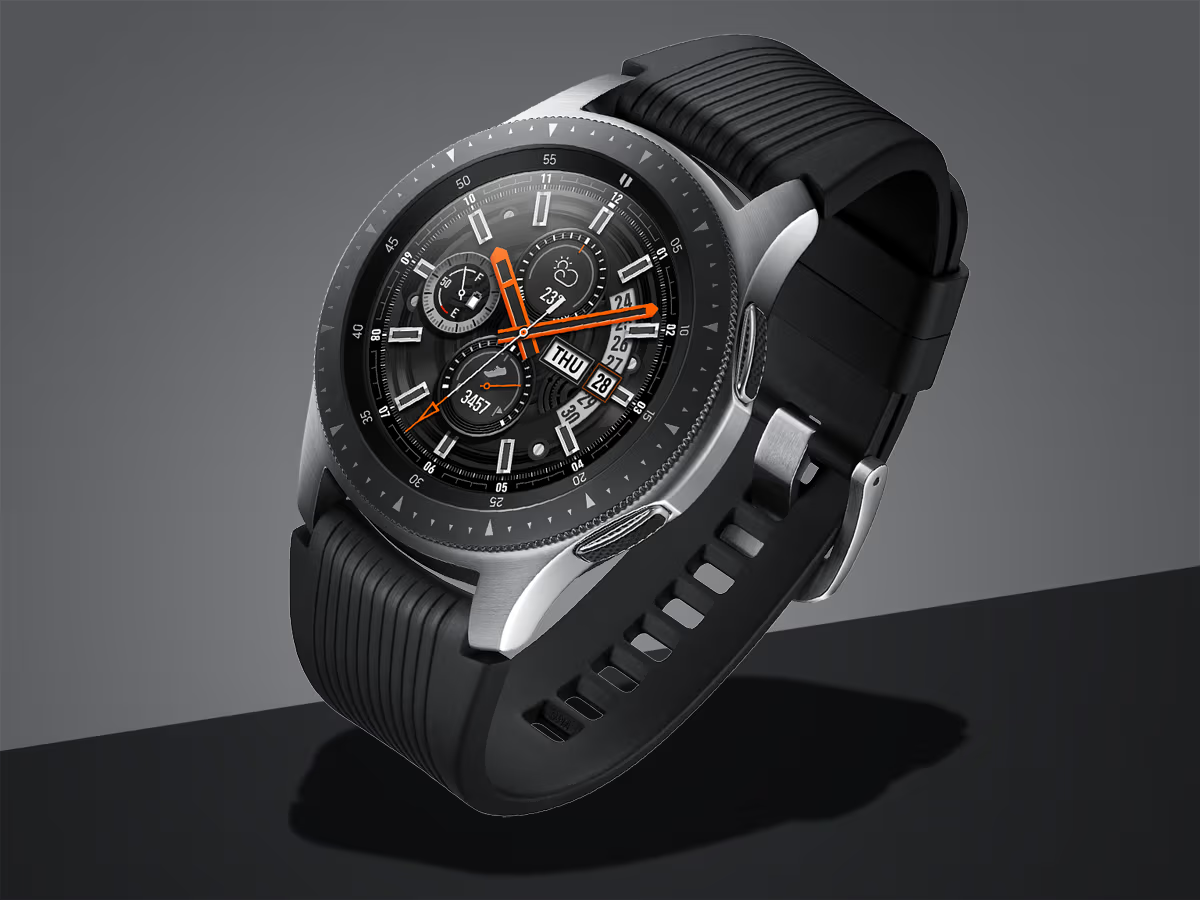
Galaxy Watch
If you are a local customer, you can walk into our store. You can usually have your Galaxy Watch fixed within 2 hours if you can drop off your device before 2 pm. However, we may need more time for complex repairs.
.
Your Galaxy Watch is in good hands
Don't leave important repairs to just anyone. For over 12 years, Fixmybrokenscreen.co.uk has repaired the devices people rely on most. And we have the reviews to prove it.
5
David Sawyer
Gear S3 Frontier
Really good service. They were very thorough, clearly pointing out the issues with my Gear S3 Frontier, and maintained excellent communication throughout. The repair was definitely worth the cost!
5
Peteralb
Galaxy watch 5 Pro
Great communication and an excellent site with clear pricing. They provided detailed instructions throughout the process. The broken screen on my Galaxy Watch 5 Pro was repaired perfectly
5
Deborah
Galaxy watch 4
I was initially anxious about paying upfront and sending my Galaxy Watch 4 away for repairs, but this shop proved to be efficient and speedy. They kept me updated throughout the process, which put my mind at ease. I highly recommend them, especially since the quotes I was getting elsewhere to fix my screen were nearly as much as the watch itself!
5
Nene
Gear S3 Classic
This shop saved me a ton of money. I had a cracked Gear S3 Classic screen and paid for the repair on their website. I sent it to them, and within a few days, they returned it looking like new. They kept me updated via text message throughout the entire process—receiving, fixing, and sending it back. A genuine and legitimate company.

Fixmybrokenscreen.co.uk is trusted by 100,000+ customers
How do I get my Galaxy Watch fixed?
The site effortlessly guides you through diagnosing the issue you're facing with your Galaxy Watch.
After placing your order for Galaxy Watch repair service, follow the on-screen instructions and send your device to our repair centre from anywhere in the UK.
Once we receive your device in the post, our trained technicians will swiftly repair it, conduct a full diagnostic check, and promptly send it back to you within 1-3 days. The delivery will be tracked to ensure it is safe and secure.
Our customer service team is always ready to help with your inquiries.
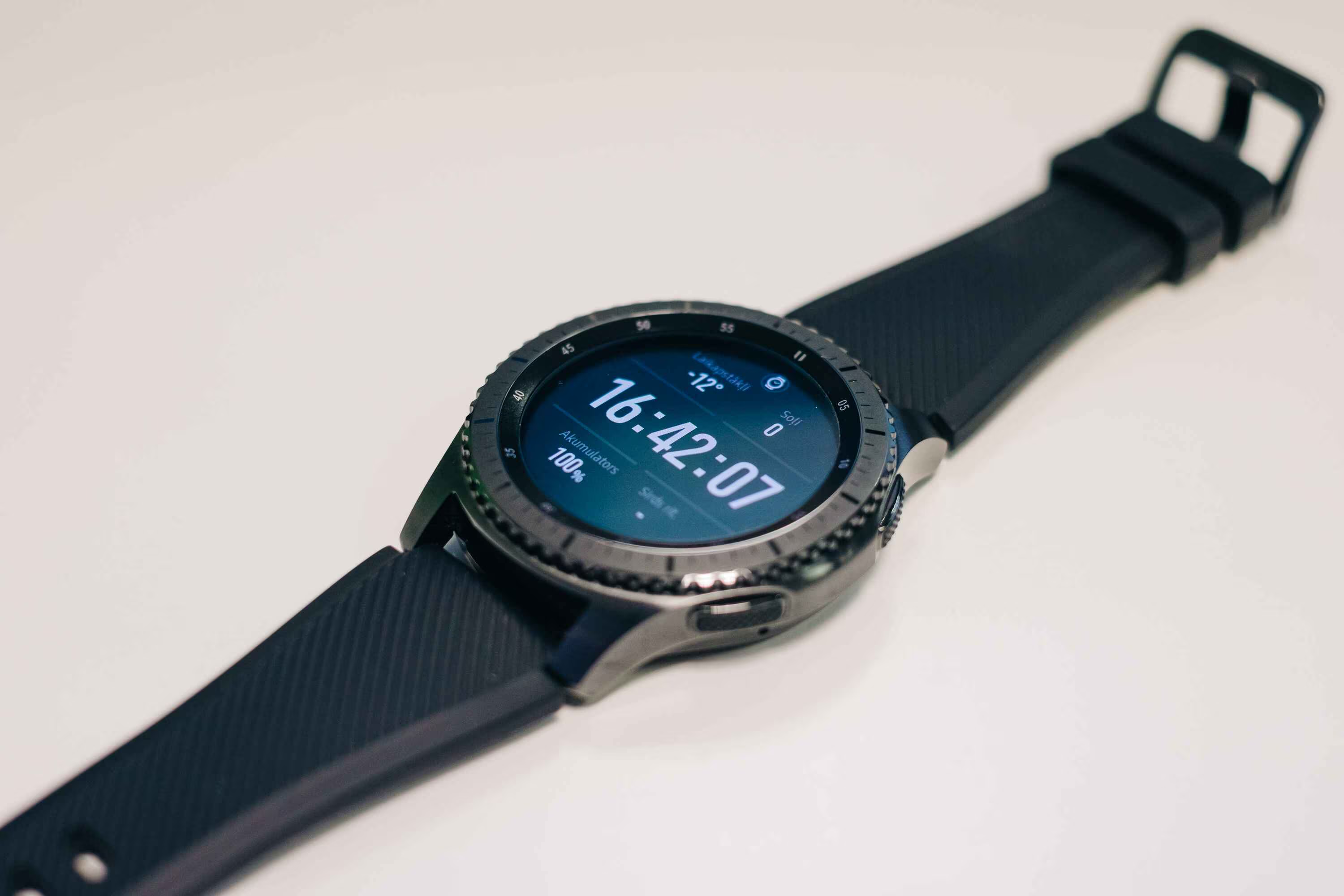
If you need help choosing the right Galaxy Watch repair service, please send a picture of your device. Take the picture when it’s turned on (if possible). This will help us suggest you the right service.
Send us a message on WhatsApp, or email at info@fixmybrokenscreen.co.uk
The cost of repairing your Galaxy Watch screen varies depending on the model of your device. You can find the model number engraved on the bottom of your Galaxy Watch.
We will repair and return your device within 1-3 days from the day we receive it. However, complex repairs may require more time.
You will find an estimated repair timeframe for your specific order during checkout.
We will repair and return your Samsung phone on the same day we receive your device.
Please note: We must receive your device at our repair centre before 1 PM on weekdays. Any device received after 1 PM or on Saturdays will be processed on the next working day.
If you are a local customer, you can walk into our store.
You can usually have your Galaxy Watch screen fixed within 2 hours if you can drop off your device before 2 pm. However, we may need more time for complex repairs.
If you are on a busy schedule or travelling from a distance, we can do your repair while you wait, which typically takes 1-2 hours.
You need to Galaxy Watch pre-book your repair online and confirm your arrival time with one of our staff members. This will allow us to make necessary arrangements before you arrive, ensuring a smooth and efficient service.
Our address is 23 Whitechapel Road, London, E1 1DU.
If we can't fix your device, we will return it for free and give you a full refund. We operate on a No Fix, No Fee policy.
We offer a 12-month warranty on parts and labour for all repairs.
Please note: our warranty does not cover accidental or physical damage. It also does not cover damage from liquid or water.
To learn more about our warranty terms, please visit the link below.
https://fixmybrokenscreen.co.uk/our-warranty
After ordering your Galaxy Watch repair service online, follow the on-screen instructions. Then, send your device to our repair centre.
You can also find detailed instructions in your order confirmation email.
Send your device to our repair centre at:
- FMBS
- 23 Whitechapel Road,
- London
- E1 1DU
For more help, our customer service team is here to assist you with any questions you may have.
Please call us on 020 8064 2362,Send us a message on WhatsApp or email at info@fixmybrokenscreen.co.uk
Fixmybrokenscreen.co.uk
Typically replies within minutes
Need a repair? We fix MacBooks, iPhones, iPads & more — same day in London or send it by post. How can we help?