iPad Screen Repairs
Looking for an iPad Screen Fix?
Same day repairs are available by appointment. Please contact us before visiting so we can check availability.
12-month warranty on all parts & labour
No fix, no fee — you only pay if we fix it

Trusted professionals. over 100,000+ devices fixed and counting

iPad Screen Repair Specialists for London and the UK
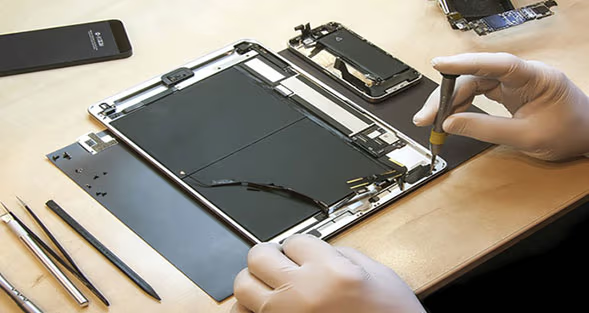
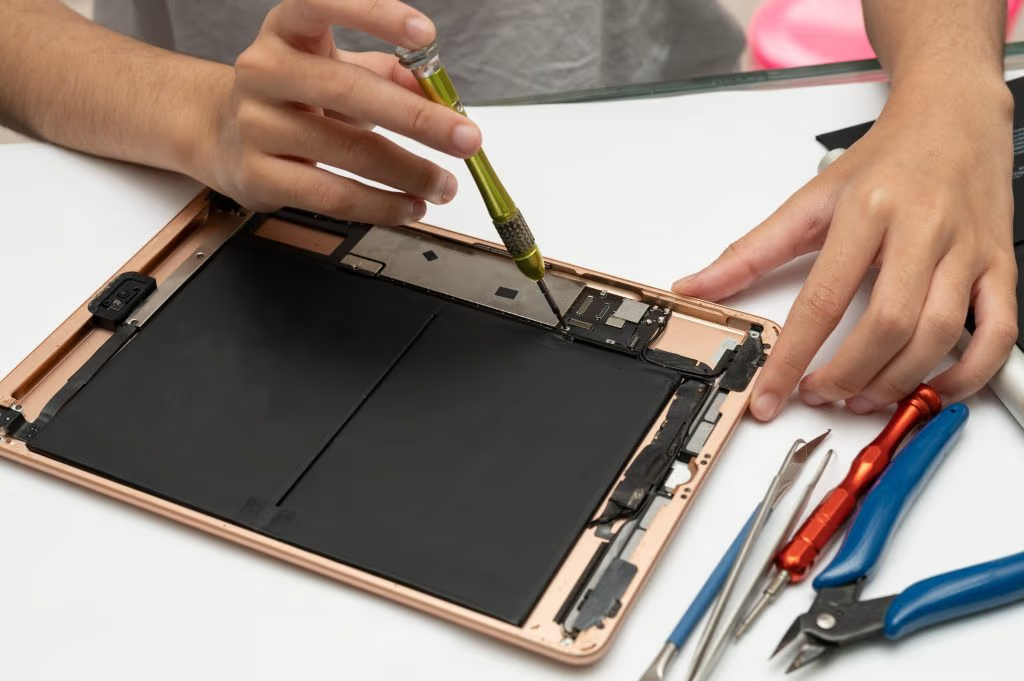
Cracked glass, a dead display or a screen that will not respond to touch: our technicians have spent years putting right every kind of iPad screen fault, and have worked on every iPad screen model released so far. Whether your iPad is an older generation or the damage is complex, we turn the screen repair round quickly, and it carries a parts and labour warranty of up to 12 months
Because we keep a large stock of OEM-quality iPad screen parts, you are not left waiting days for a part to arrive. Bring your iPad to our Whitechapel store by appointment or send it in from anywhere in the UK, and we will have the screen fixed as quickly as we can, with the same warranty of up to 12 months.
Get your device fixed the easy way
You can post your device, arrange a door collection or visit our store.

Book Repair
- Place your order online
- Easy and secure
Send Your Device
- Use your preferred delivery method
- Arrange door collection
Repair & Return
- We start repairing as soon as we receive your device
- Most repairs are done in 1–2 days
- Secure return
🚚 Send Your iPad Screen by Courier, or Bring It to Our London Store
Wherever you are in the UK, your iPad Screen can reach our technicians without a trip to the post office. Book our Door Collection Service and a courier picks it up the next day, or post it to us yourself if you prefer:
-
📦 Pack It Securely – Put your iPad Screen in a padded box. There is no label to print and no form to complete.
-
🏠 Next-Day Collection – The courier calls at your home or office the day after you book.
-
🔁 Tracked Return Included – Return postage is part of the repair price, and your iPad Screen comes back by tracked delivery.
-
🏪 Prefer to Visit? – Book an appointment at our Whitechapel store and we can repair it the same day. You will find us at 23 Whitechapel Road, London E1 1DU.
Whichever route you pick, every repair is covered by our no fix, no fee promise.
Choose Door Collection at checkout, or book a store appointment if you are in London. See how it works
We can fix any iPad Screens - new or old
Select your iPad to get started
How to Find iPad Model?
Here are the steps to find your Samsung Galaxy model
There are two easy methods to find your Galaxy phone model.
Method 1: Check the Settings app
- Open the Settings app on your Samsung Galaxy device.
- Scroll down and tap 'About phone' or 'About device'.
- Look for the 'Model number' or 'Model name' information.
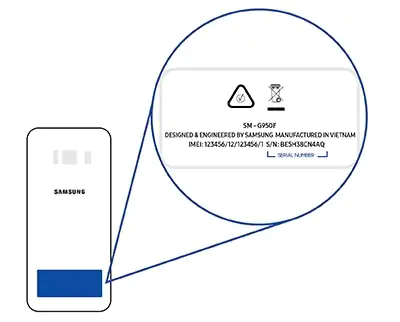
Method 2: Check the back of your Samsung phone.
- Using the Samsung phone model number, the table below will help identify which model Samsung phone you have
| Model Name | Model Number |
|---|---|
| Samsung Galaxy S22 Ultra | SM-S908B, SM-S908U, SM-S908U1, SM-S908W, SM-S908N, SM-S9080, SM-S908E, SM-S908E |
| Samsung Galaxy S22 | SM-S901B, SM-S901U, SM-S901U1, SM-S901W, SM-S901N, SM-S9010, SM-S901E, SM-S901E |
| Samsung Galaxy S22 Plus | SM-S906B, SM-S906U, SM-S906U1, SM-S906W, SM-S906N, SM-S9060, SM-S906E, SM-S906E |
| Samsung Galaxy S21 Ultra | SM-G998B, SM-G998B, SM-G998U, SM-G998U1, SM-G998W, SM-G998N, SM-G9980 |
| Samsung Galaxy S21 Plus | SM-G996B, SM-G996U, SM-G996U1, SM-G996W, SM-G996N, SM-G9960 |
| Samsung Galaxy S21 | SM-G990F |
| Samsung Galaxy S21 FE | SM-G990B, SM-G990U, SM-G990U1, SM-G990W, SM-G990E, SM-G9900, SM-G990B2 |
| Samsung Galaxy S20 Ultra | SM-G988, SM-G988U, SM-G988U1, SM-G9880, SM-G988N, SM-G988B, SM-G988W |
| Samsung Galaxy S20 Plus | SM-G986, SM-G986F, SM-G986U, SM-G986U1, SM-G9860, SM-G986B/DS, SM-G986N, SM-G986B, SM-G986W |
| Samsung Galaxy S20 | SM-G980, SM-G980F |
| Samsung Galaxy S20 FE | SM-G781B, SM-G781U, SM-G781U1, SM-G781W, SM-G7810, SM-G781N, SM-G781V |
| Samsung Galaxy S10 5G | SM-G977U, SM-G977N, SM-G977B, SM-G9770, SM-G977P, SM-G977T |
| Samsung Galaxy S10 Plus | SM-G975F, SM-G975U, SM-G975W, SM-G975U1, SM-G9750, SM-G975N, SM-G975X |
| Samsung Galaxy S10 | SM-G973F, SM-G973U, SM-G973W, SM-G973U1, SM-G9730, SM-G973N, SM-G973X, SCV41, SM-G973C |
| Samsung Galaxy S10 Lite | SM-G770F, SM-G770U1 |
| Samsung Galaxy S10e | SM-G970F, SM-G970U, SM-G970W, SM-G9700, SM-G970U1, SM-G970N, SM-G970X |
| Samsung Galaxy S9 Plus | SM-G965F, SM-G965U, SM-G965W, SM-G9650, SM-G965U1, SM-G965N, SCV39, SM-G965X |
| Samsung Galaxy S9 | SM-G960F, SM-G960, SM-G960F, SM-G960U, SM-G960W, SM-G9600, SM-G960U1, SM-G960N, SCV38, SM-G960X |
| Samsung Galaxy S8 Plus | SM-G955F, SM-G955FD, SM-G955W, SM-G955A, SM-G955P, SM-G955T, SM-G955V, SM-G955R4, SM-G955U, SM-G955S, SM-G955K, SM-G955L, SM-G955, SM-G955U1, SM-G955N, SM-G9550 |
| Samsung Galaxy S8 | SM-G950FD, SM-G950W, SM-G950S, SM-G950K, SM-G950L, SM-G9500, SM-G950A, SM-G950P, SM-G950T, SM-G950U, SM-G950V, SM-G950F, SM-G950U1, SM-G950N, SC-02J, SCV36 |
| Samsung Galaxy Note 20 Ultra | SM-N986B, SM-N986U, SM-N986U1, SM-N986W, SM-N9860, SM-N986N |
| Samsung Galaxy Note 20 | SM-N981B, SM-N981U, SM-N981U1, SM-N981W, SM-N9810, SM-N981N |
| Samsung Galaxy Note 10+ | SM-N975F, SM-N975U, SM-N9750, SM-N975U1, SM-N975W, SM-N975N, SM-N975X |
| Samsung Galaxy Note 10 | SM-N971U, SM-N971N |
| Samsung Galaxy Note 10 Lite | SM-N770F |
| Samsung Galaxy Note 9 | SM-N960F, SM-N9600, SM-N960F, SM-N960U, SM-N960U1, SM-N960N, SM-N960W, SM-N960X |
| Samsung Galaxy Note 8 | SM-N950F, SM-N950U, SM-N9500, SM-N950U1, SM-N950N, SM-N950W |
| Samsung Galaxy Fold | SM-F900F, SM-F9000, SM-F900W, SM-F900U, SM-F900N, SM-F900U1 |
| Samsung Galaxy Z Flip | SM-F700, SM-F700F, SM-F700F/DS, SM-F700U/DS, SM-F700U1/DS, SM-F700N, SM-F700U1 |
| Samsung Galaxy Z Fold 2 | SM-F916B, SM-F916U, SM-F916U1, SM-F916N, SM-F9160, SM-F916W |
| Samsung Galaxy Z Flip 5G | SM-F707B, SM-F707N, SM-F7070, SM-F707U, SM-F707U1, SM-F707W |
| Samsung Galaxy Z Fold 3 | SM-F926B, SM-F926U, SM-F926U1, SM-F926W, SM-F9260, SM-F926N |
| Samsung Galaxy Z Flip 3 | SM-F711B, SM-F711N, SM-F711U, SM-F711U1, SM-F711W, SM-F7110 |
| Samsung Galaxy Z Fold 4 | SM-F936B, SM-F936U, SM-F936U1, SM-F936N, SM-F936W |
| Samsung Galaxy Z Flip 4 | SM-F721B, SM-F721N, SM-F721U, SM-F721U1, SM-F721W |
| Samsung Galaxy A10 2019 | SM-A105F, SM-A105G, SM-A105M, SM-A105FN |
| Samsung Galaxy A20e 2019 | SM-A202F, SM-A202K |
| Samsung Galaxy A40 2019 | SM-A405F, SM-A405FN, SM-A405FM, SM-A405S |
| Samsung Galaxy A50 2019 | SM-A505F, SM-A505FN, SM-A505GN, SM-A505G, SM-A505FM, SM-A505YN, SM-A505W, SM-A505X, SM-A505U, SM-A505GT, SM-A505U1, SM-A505G, SM-A505N, SM-S506DL |
| Samsung Galaxy A70 2019 | SM-A705F, SM-A705FN, SM-A705GM, SM-A705MN, SM-A7050, SM-A705W, SM-A705YN, SM-A705X, SM-A705U |
| Samsung Galaxy A21s | SM-A217F, SM-A217F/DS, SM-A217F/DSN, SM-A217M, SM-A217M/DS, SM-A217N |
| Samsung Galaxy A41 | SM-A415F |
| Samsung Galaxy A51 | SM-A516F, SM-A516B, SM-A516U, SC-54A, SM-A516U1 |
| Samsung Galaxy A71 | SM-A716F, SM-A716F/DSN, SM-A7160, SM-A716U, SM-A716B, SM-A716U1 |
| Samsung Galaxy A32 4G/5G | SM-A326B, SM-A326BR/DS, SM-A326BR, SM-A326U, SM-A326W, SM-A326U1, SM-A326K, SM-S326DL |
| Samsung Galaxy A42 5G | SM-A426B, SM-A4260, SM-A426U, SM-A426U1, SM-A426N |
| Samsung Galaxy A52 4G/5G | SM-A526B, SM-A5260, SM-A526W, SM-A526U, SM-A526U1 |
Model Finding - Video Instruction
What iPhone Do I Have? Here’s the easy way to find out
There are two easy methods to find your iPhone model.
Method 1: Find the model name on your iPhone settings.
- Open the "Settings" App and tap on the "Settings" app icon, which looks like a gear wheel and is typically located on your iPhone's home screen.
- Go to "General" by scrolling down and tapping on it in the settings menu.
- Tap on "About" in the "General" section.
- Find "Model Name" in the "About" section, where you'll see the full model name of your iPhone.
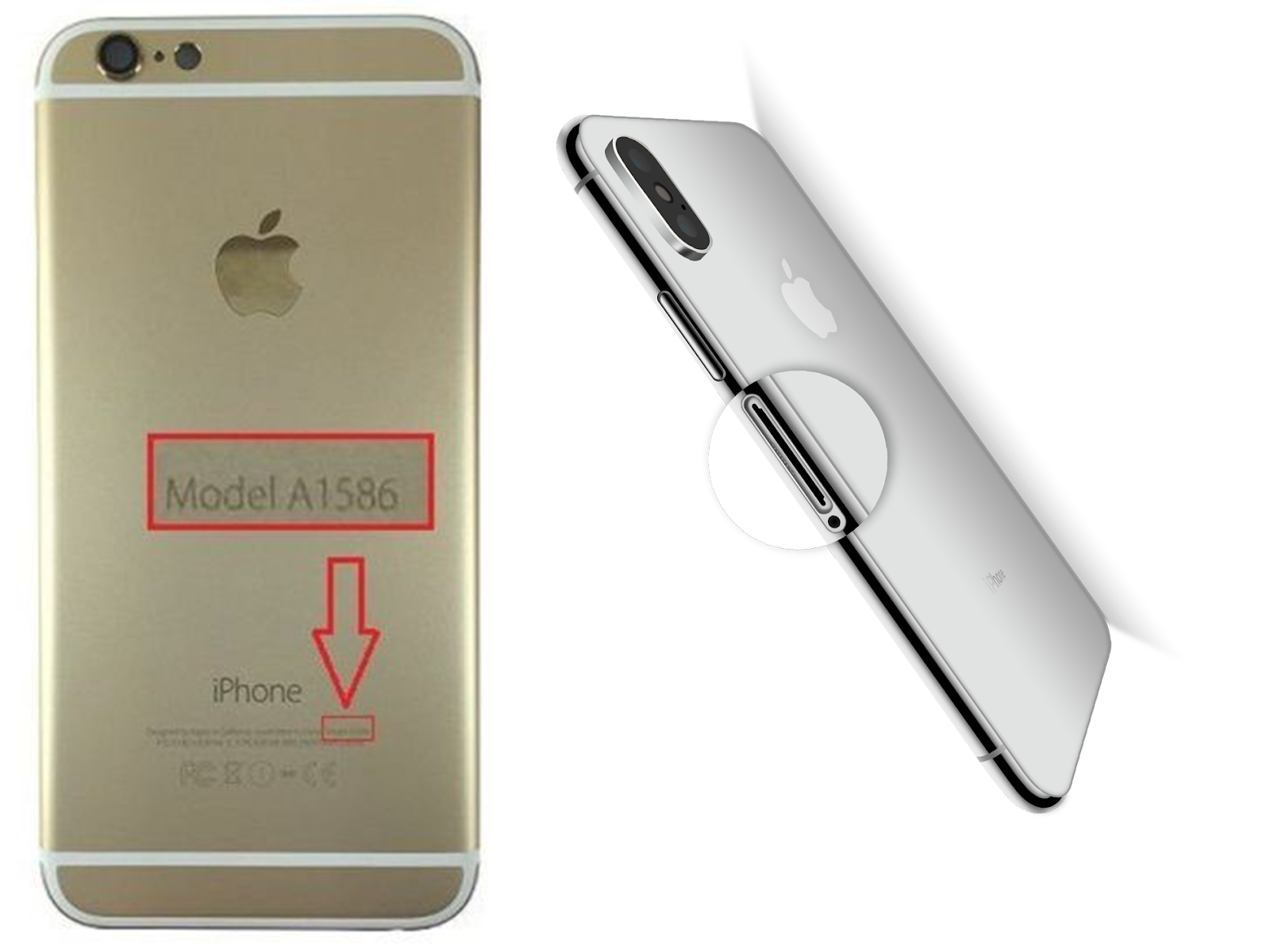
Method 2: Find the “A” model number on your iPhone.
- On iPhone 7 or earlier models, look on the back of your iPhone.
- On iPhone 8 or later models, check the upper side of the SIM tray.
- Using the iPhone model number, refer to the provided table to identify which model iPhone you have.
| Model Name | Model Number |
|---|---|
| iPhone 14 Pro Max | A2894, A2651, A2893, A2895 |
| iPhone 14 Pro | A2890, A2650, A2889, A2892 |
| iPhone 14 Plus | A2886, A2632, A2885, A2896, A2887 |
| iPhone 14 | A2882, A2649, A2881, A2884, A2883 |
| iPhone SE (3rd generation) | A2783, A2595, A2785, A2782, A2784 |
| iPhone 13 Pro Max | A2643, A2484, A2641, A2644, A2645 |
| iPhone 13 Pro | A2638, A2483, A2636, A2639, A2640 |
| iPhone 13 | A2633, A2482, A2631, A2634, A2635 |
| iPhone 13 Mini | A2628, A2481, A2626, A2629, A2630 |
| iPhone 12 Pro Max | A2411, A2342, A2410, A2412 |
| iPhone 12 Pro | A2407, A2341, A2406, A2408 |
| iPhone 12 | A2403, A2172, A2402, A2404 |
| iPhone 12 Mini | A2399, A2176, A2398, A2400, A2399 |
| iPhone SE (2nd generation) | A2275, A2296, A2298 |
| iPhone 11 Pro Max | A2218, A2161, A2220 |
| iPhone 11 Pro | A2215, A2160, A2217 |
| iPhone 11 | A2221, A2111, A2223 |
| iPhone XS Max | A1921, A2101, A2102, A2104 |
| iPhone XS | A2097, A1920, A2100, A2098 |
| iPhone XR | A2105, A1984, A2107, A2108, A2106 |
| iPhone X | A1865, A1901, A1902, A1903 |
| iPhone 8 Plus | A1864, A1897, A1898, A1899 |
| iPhone 8 | A1863, A1905, A1906, A1907 |
| iPhone 7 Plus | A1661, A1784, A1785, A1786 |
| iPhone 7 | A1660, A1778, A1779, A1780, A1853, A1866 |
| iPhone SE (1st generation) | A1662, A1723, A1724 |
| iPhone 6S Plus | A1634, A1687, A1690, A1699 |
| iPhone 6S | A1633, A1688, A1691, A1700 |
| iPhone 6 Plus | A1522, A1524 |
| iPhone 6 | A1549, A1586, A1589, A1522, A1524, A1593 |
| iPhone 5S | A1453, A1457, A1518, A1528, A1530, A1533 |
Model Finding - Video Instruction
Two quick checks tell you exactly which iPad you have
Knowing the exact iPad lets us quote the right screen, battery or charging port before you book. Check it in iPadOS, or read the A-number printed on the back casing.
Method 1: Look it up in iPadOS
- Unlock the iPad and tap the grey Settings icon.
- Select General in the left-hand column.
- Tap About at the top of the General list.
- The Model Name line shows your iPad by name, for example iPad Air (5th generation).
- Tap the Model Number line once and it switches from a part number starting with M to the A-number, such as A2588.
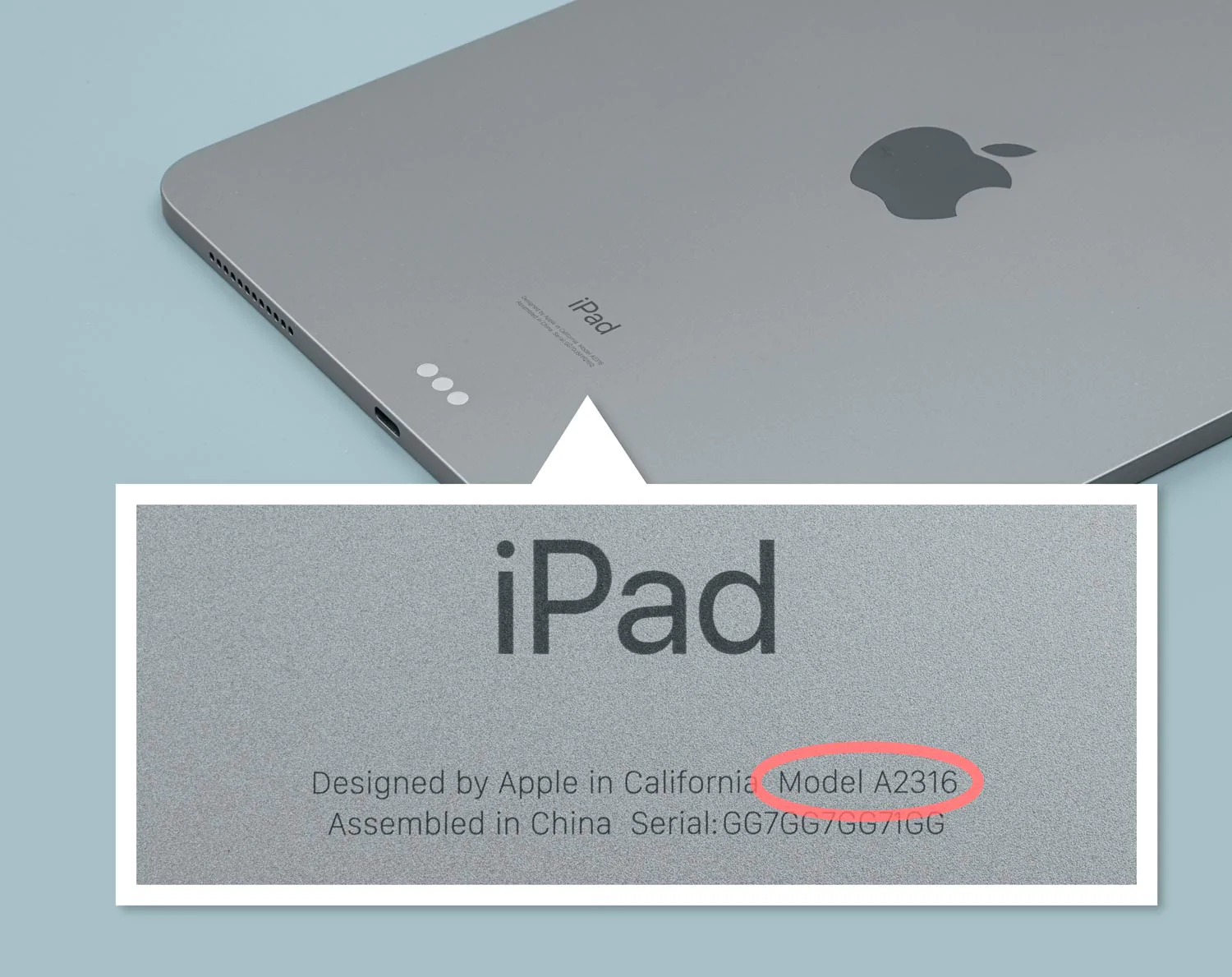
Method 2: Read the A-number on the back casing
- Turn the iPad over and look under the word iPad for a line of very small print.
- Find the code that starts with a capital A and has four digits, e.g. A2602.
- Match it against the table below to see your exact iPad model and generation.
- Print hidden by a case or worn away? Use Method 1, or ask our team when you book a collection or visit our Whitechapel store.
| Model Name | Model Number |
|---|---|
| iPad mini 4 | A1538, A1550 |
| iPad mini 5 | A2126, A2124, A2133, A2125 |
| iPad mini 6 | A2568, A2567, A2569 |
| iPad Air | A1474, A1475, A1476 |
| iPad Air 2 | A1566, A1567 |
| iPad Air 3 | A2153, A2123, A2154, A2152 |
| iPad Air 4 | A2324, A2072, A2325, A2316 |
| iPad Air 5 | A2589, A2591, A2588 |
| iPad Pro 9.7 | A1673, A1674, A1675 |
| iPad Pro 10.5 | A1701, A1709, A1852 |
| iPad Pro 12.9 1st Gen | A1584, A1652 |
| iPad Pro 12.9 2nd Gen | A1670, A1671, A1821 |
| iPad Pro 12.9 3rd Gen | A2014, A1895, A1876, A1983 |
| iPad Pro 12.9 4th Gen | A2069, A2232, A2233, A2229 |
| iPad Pro 12.9 5th Gen | A2378, A2379, A2461, A2462 |
| iPad Pro 12.9 6th Gen | A2436, A2764, A2437, A2766 |
| iPad pro 11" 1st | A2068, A2230, A2228, A2231 |
| iPad pro 11" 2nd Gen | A2013, A1934, A1980, A1979 |
| iPad pro 11" 3rd Gen | A2301, A2459, A2460 |
| iPad pro 11" 4th Gen | A2759, A2435, A2761, A2762 |
| iPad 4th | A1458, A1459, A1460 |
| iPad 5th | A1822, A1823 |
| iPad 6th | A1893, A1954 |
| iPad 7th | A2197, A2200, A2198 |
| iPad 8th | A2270, A2428, A2429, A2430 |
| iPad 9th | A2602, A2604, A2603, A2605 |
| iPad 10th | A2696, A2757, A2777 |
Model Finding - Video Instruction
Find the Series and case size of your Apple Watch in under a minute
We price Apple Watch screen and battery repairs by Series and case size, so it helps to know both. Read the engraving on the sensor side of the watch, or check the Watch app on your paired iPhone.
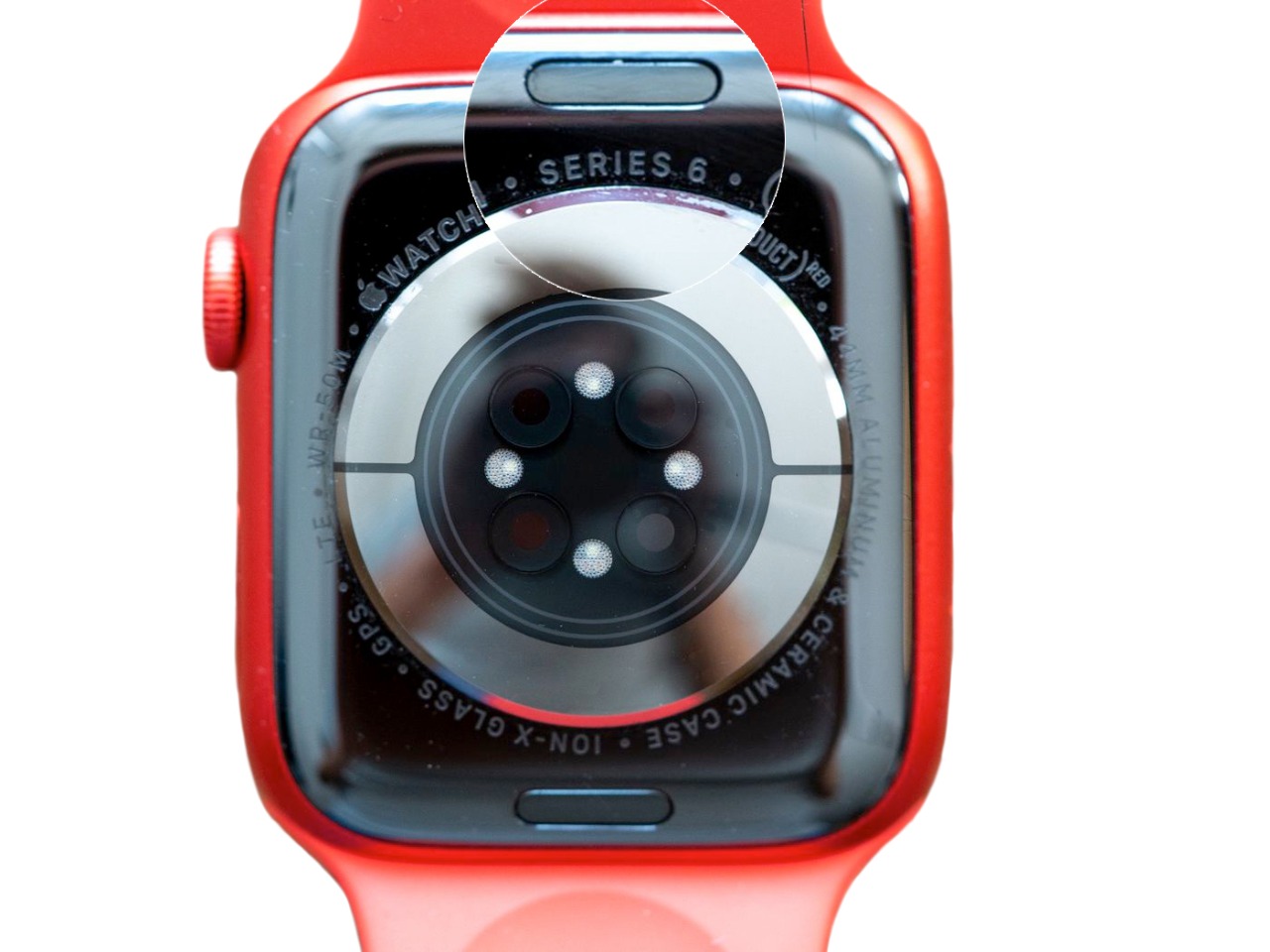
Method 1: Read the engraving on the back of the watch
- Take the watch off and turn it over so the round sensor faces you.
- The text etched around the sensor names the Series (for example Series 7) and the case size in millimetres, such as 41mm or 45mm.
- A Series 1 is the exception: its back carries only the Apple logo and the word WATCH, with no Series number.
Method 2: Look it up in the Watch app on your iPhone
- On the iPhone paired with the watch, open the Watch app and stay on the My Watch tab.
- Tap General, then About.
- The Model line shows a part number that starts with M.
- Tap that number once and it changes to an A plus four digits, such as A1803. Use that code with the table below.
| Model Name | Model Number |
|---|---|
| Apple Watch S1 | A1802, A1803, A1553, A1554 |
| Apple Watch S2 | A1757, A1758, A1816, A1817 |
| Apple Watch S3 | A1858, A1859, A1860, A1861, A1889, A1891, A1890, A1892 |
| Apple Watch S4 | A1977, A1978, A1975, A1976, A2007, A2008 |
| Apple Watch S5 / SE | A2092, A2093, A2156, A2157, A2094, A2095, A2092, A2093, A2351, A2352, A2353, A2354, A2355, A2356 |
| Apple Watch S6 | A2291, A2292, A2293, A2294, A2375, A2376 |
| Apple Watch S7 | A2473, A2474, A2475, A2476, A2477, A2478 |
| Apple Watch S8 | A2773, A2775, A2772, A2774, A2857, A2858 |
| Apple Watch SE 2 | A2722, A2723, A2724, A2725, A2726, A2727 |
| Apple Watch Ultra | A2622, A2684, A2859 |
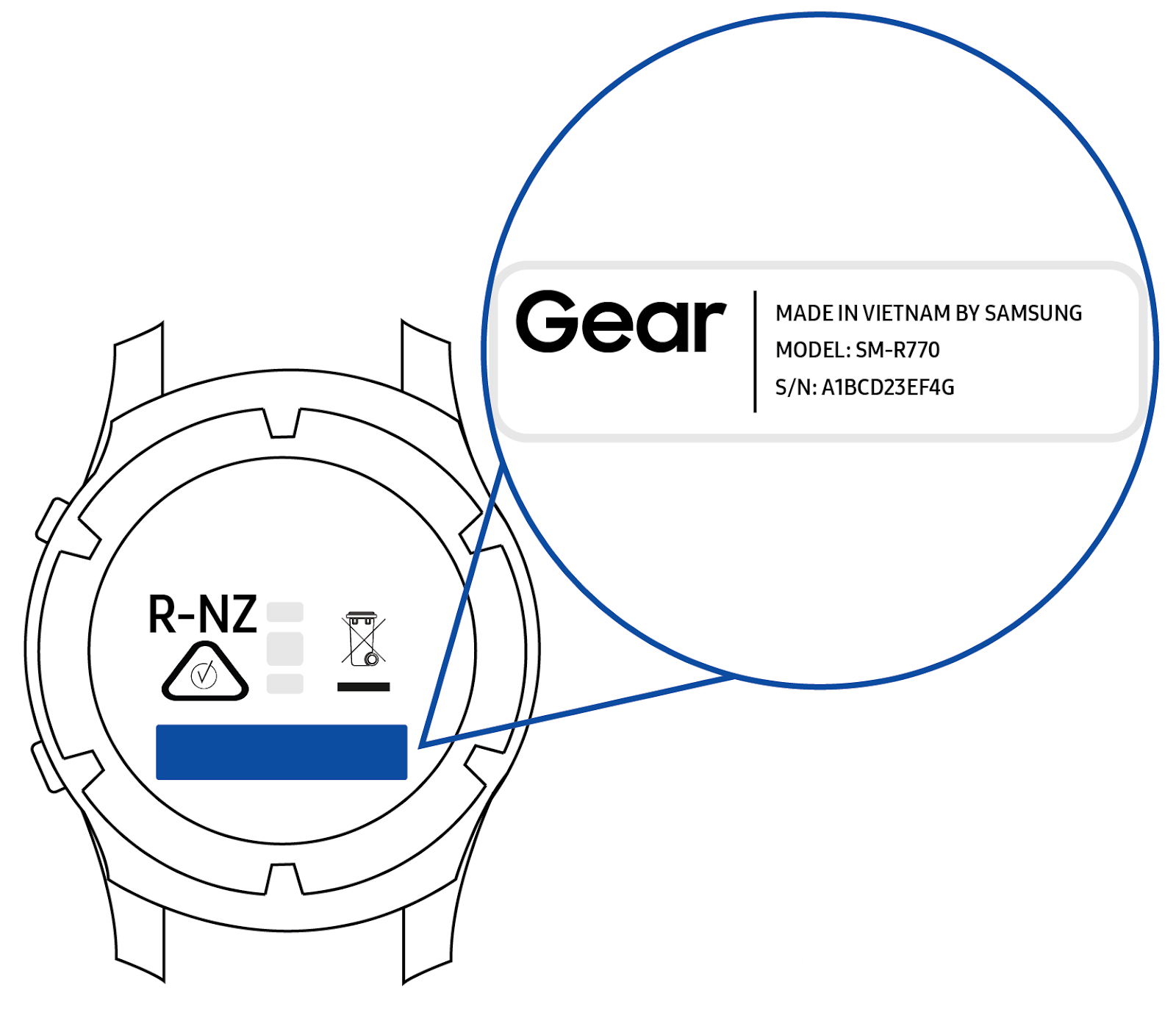
Here are the steps to find your Samsung Galaxy Watch model
There are two easy methods to find your Galaxy Watch model.
Method 1: Check the back of your Galaxy Watch
- The rear of every Apple Watch is engraved with details of the watch. Simply look on the back of the watch and you’ll find the model number of your watch.
Method 2: Identify your Galaxy Watch through the settings on your watch.
- Go to, Settings on your watch
- Tap About watch
- The model number and the serial number of your watch will be displayed.
| Model Name | Model Number |
|---|---|
| Active 2 40mm / 44mm | SM-R825F, SM-R835F, SM-R825U, SM-R835U, SM-R830, SM-R820 |
| Gear S3 Frontier / Classic | SM-R760A, SM-R765A, SM-R770A, SM-R775 |
| Galaxy Watch 3 41mm / 45mm | SM-R850, SM-R840, SM-R855F, SM-R845F, SM-R855U, SM-R845U |
| Galaxy Watch 4 40mm / 44mm | SM-R860, SM-R870 |
| Galaxy Watch 4 Classic 42mm / 46mm | SM-R880, SM-R890 |
| Galaxy Watch 5 40mm / 44mm | SM-R915F, SM-R905F |
| Galaxy Watch 5 Pro 45mm | SM-R925F |
| Gear Fit 2 | SM-R360 |
| Gear Fit 2 Pro | SM-R365 |
Pin down your exact MacBook before you book a repair
MacBook parts change from one year to the next, so we need the exact model to quote a screen, keyboard or battery. Read it from macOS in seconds, or from the A-number printed under the laptop.
Method 1: Use About This Mac
- Click the Apple logo at the far left of the menu bar.
- Select About This Mac.
- The window names your Mac and its year, e.g. MacBook Air 13-inch, M2, 2022.
- Need the model identifier too? Click More Info, scroll down and open System Report; you will find it under Hardware Overview.
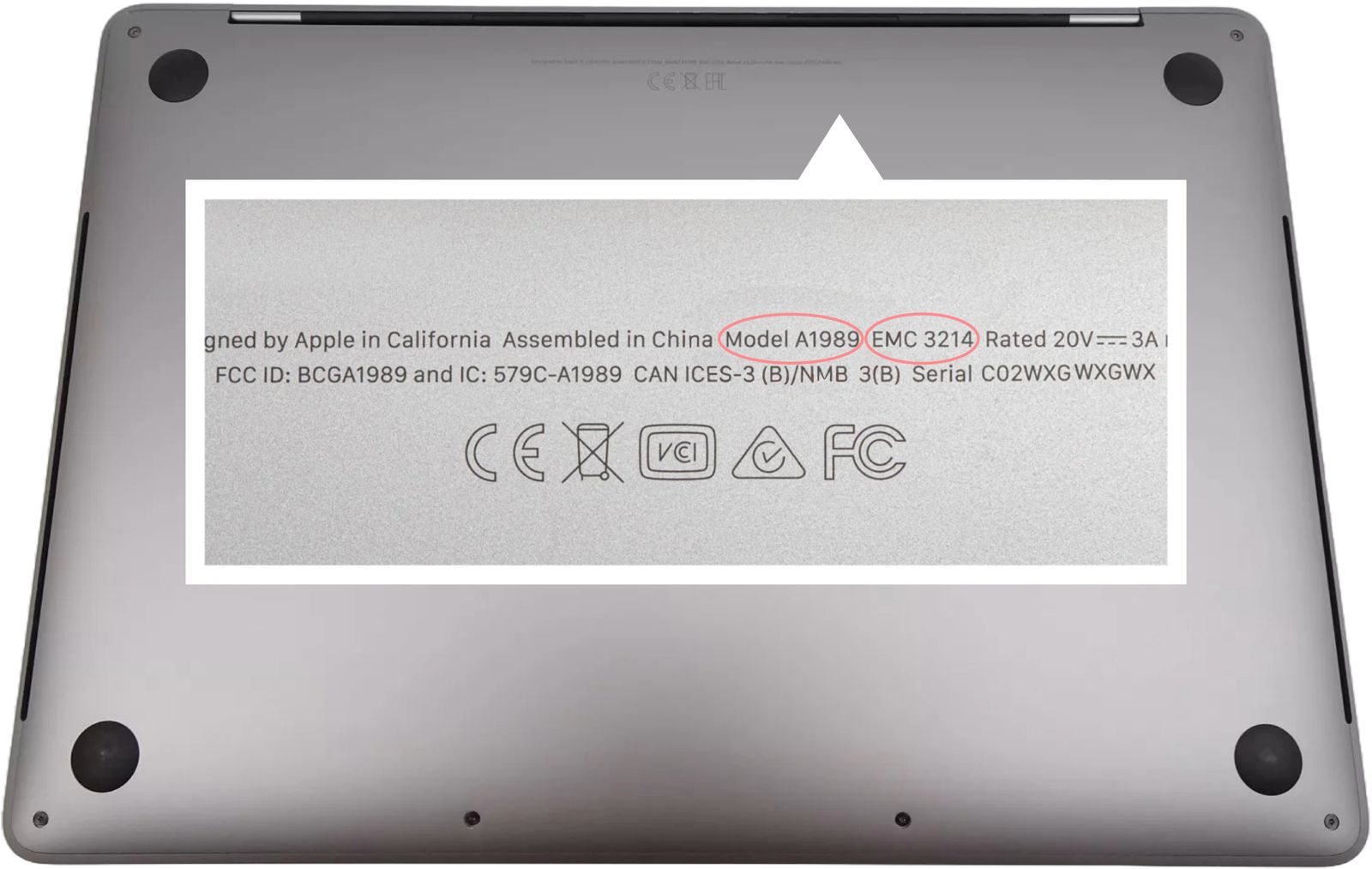
Method 2: Find the A-number underneath
- Shut the lid and flip the MacBook over onto a soft surface.
- Look along the edge nearest the hinge for a line of tiny regulatory text containing Model A plus four digits, e.g. A2681.
- Compare that number with the list below.
- Text rubbed off? Go back to Method 1, or give us the serial number when you book and our technicians will identify the model.
| Model Name | Model Number |
|---|---|
| MacBook Air 13-inch | A1466, A1932, A2179, A2337, A2681, A3113 |
| MacBook Air 15-inch | A2941, A3114 |
| MacBook Pro 13-inch | A1502, A1708, A1706, A1989, A2159, A2251, A2289, A2338 |
| MacBook Pro 14-inch | A2442, A2779, A2918, A2992, A3401, A3185, A3426, A3427 |
| MacBook Pro 16-inch | A2141, A2485, A2780, A2991, A3403, A3186, A3428, A3429 |
| MacBook 12-inch | A1534 |
| MacBook Neo 13-inch | A3404 |
Two easy ways to get your iPad screen fixed
Post or Courier
Nothing to pay upfront (optional)
Anywhere on the UK mainland
Diagnostic service available
Tracked return postage included
Visit Our Whitechapel Store
Handy for customers across London
Same day repairs by appointment: get in touch and pre-book online first so we can confirm a slot.

What Can We Fix on Your iPad Screen?
Why Customers Trust Us for iPad Screen Repairs
12-Month Warranty. Every Screen repair is backed by our 12-month parts and labour warranty, long after it is back in your hands.
Excellent Reviews Customers rate us highly on Trustpilot, Google and Facebook.
No Fix, No Fee. Should your Screen prove unfixable, there is nothing to pay.
Excellent Customer Service. Our team answers your questions on WhatsApp, email and phone.
Fast Turnaround. We schedule every job to get you back up and running quickly, with the quickest turnaround we can offer.
Trusted professionals. Over 100,000 iPhone, iPad, MacBook, Apple Watch and Samsung devices repaired so far.
iPad Screen
.
What our iPad Screen customers say
For more than 12 years, Fixmybrokenscreen.co.uk has fixed phones, tablets, laptops and watches for customers in London and across the UK. Here is what some of them say, and there are many more reviews on Google.
5
Peteralb
iPad mini
Great communication. Excellent site with precise pricing. Instructions all the way. The broken screen on the iPad mini was perfectly repaired and returned.Thanks
5
Brian T
iPad Air
I have just got my iPad Air 3 back after having the screen repaired. Whilst everyone else was offering to replace the complete screen and LCD, even though the LCD worked perfectly, fixmybrokenscreen offered a glass-only service. It’s definitely worth doing.
5
Brian sherwood
iPad pro
Brilliant service. I posted an iPad with a broken screen and it was returned within 48 hours as good as new. Very competitive cost compared with other repairers and one-third of the Apple price
5
Colin
iPad
Outstanding service. Prompt and most efficient turnaround with effective contact maintained at each stage of receipt and despatch. Remarkably short period from sending the damaged iPad for screen repair and its return, only 3 days which is superbly efficient. Highly recommended.

FixMyBrokenScreen is trusted by 100,000+ customers
How do I get my iPad fixed?
Start by telling us what is wrong: our booking pages help you narrow down the fault with your iPad.
Once your iPad repair is booked, the checkout steps show how to get it to our London repair centre. Post it from anywhere in the UK, book a next-day courier collection, or contact us to pre-book a same day repair at our Whitechapel store.
When it arrives, our technicians repair it, run a full diagnostic check and usually have it on its way back within two working days of receiving it, though complex repairs can take longer. Return postage is tracked and included, so it gets home safely.
Questions along the way? Our team answers by phone, WhatsApp and email.
Yes. Snap a photo of your iPad Screen showing the fault, with the screen switched on if it still powers up, and our technicians will tell you which repair service fits. We look after iPhone, iPad, MacBook, Apple Watch and Samsung devices, so one photo is usually all it takes.
WhatsApp the photo to us, or attach it to an email for info@fixmybrokenscreen.co.uk
Most devices that arrive at our repair centre by post or courier are fixed and on their way back to you within two working days, though a complex fault can take longer.
Checkout shows an estimated turnaround for the exact repair you choose, so you know what to expect before you pay.
Usually two working days, counted from the day your device reaches us to the day we send it back repaired.
Yes. Our Whitechapel store offers same day repairs by appointment, so London customers can drop in rather than post their device.
Book your iPad Screen repair online first, then get in touch to agree a drop-off time. That way the parts and a technician are ready for you the moment you walk in.
You'll find us at 23 Whitechapel Road, London, E1 1DU.
Then you pay nothing. Under our No Fix, No Fee promise we send the device back to you free of charge and refund your payment in full.
Yes. Each repair carries a 12-month warranty that covers both the parts we fit and our labour.
The warranty excludes accidental and physical damage, along with any damage caused by water or other liquids.
The full terms are set out on our warranty page:
Once your iPad Screen repair is booked online, the confirmation screen explains how to pack and post it. Anywhere in the UK, you can post it yourself or book a next-day courier collection when you order.
Your order confirmation email repeats those steps, so you can check them again before you send it.
Our repair centre address:
- FMBS
- 23 Whitechapel Road,
- London
- E1 1DU
Questions before you post it? Our team is happy to talk you through it.
Ring 020 8064 2362, drop us a line on WhatsApp or write to info@fixmybrokenscreen.co.uk
FixMyBrokenScreen
Typically replies within minutes
Need a repair? We fix MacBooks, iPhones, iPads & more — same day in London or send it by post. How can we help?